Updating code
See also: The update run · Updating ontology · Updating data · How a code update works
Dédalo is an active, rapidly developing software project. It is therefore important to keep it updated and in good condition for stability and security reasons.
The maintenance-panel self-update (below), driven by a configured code server, is how an instance installed by the installer is updated; it operates on this install's own tree. A container installation updates by image instead (below), and a git checkout — a development machine, or a host set up by hand — can also be updated with a manual git pull (see Updating manually).
The update process is based on the Dédalo cadence numbering. Versions are installed step by step — the updater refuses to skip any version, patch releases included: the only target it accepts is the very next rung. A code update is one update run: the code swap is one of its phases, and the ontology, schema, data and ancillary phases the release declares run in the release's order, after the swap or (an ontology precondition) before it. You do not update the ontology or the data by hand around a code update.
Updating the Dédalo code should be supervised by the IT team. Some changes — such as new configuration settings — must be applied manually in ../private/.env, because neither update path touches your configuration.
Update pre-production system and test before update new versions into production system
Is highly recommended to test your new Dédalo installation before deploying the changes into the production environment. This will help ensure that the update will not have a negative impact on your catalogue.
Panel self-update
The "Update code" maintenance panel (update_code widget,
src/core/area_maintenance/widgets/update_code.ts) is the RECEIVING side; building
and serving releases is the Serve Code panel.
It downloads a release
archive from a configured code server, verifies its sha256 checksum,
pre-validates every archive entry, extracts it into a quarantine directory,
installs its dependencies and boot-tests it there, and only then swaps it
onto the live tree — never over the live tree directly. The swap is always a
clean, rename-based replacement with the previous tree kept as a backup; see
How a code update works for the phases, the
safety gates and the rollback contract.
A release is installed only against a declared checksum
Every release the code server advertises carries the sha256 of its archive, and the update refuses outright if that checksum is missing, malformed, or does not match the bytes received. An archive that cannot be verified is never extracted.
It requires a process supervisor (systemd, Docker, pm2, …) so the
server can restart itself onto the new code, and the supervisor must
declare itself: DEDALO_SUPERVISED=true in the environment of the process it
starts. Without that declaration the update refuses rather than risk a self-exit
with nothing to restart it. Every launch method Dédalo ships already declares it:
| Launch method | Where DEDALO_SUPERVISED=true is declared |
|---|---|
systemd (dedalo-ts@<i>, written by the installer; deploy/dedalo-ts.service on a host set up by hand) |
Environment=DEDALO_SUPERVISED=true in the unit |
Docker Compose (docker-compose.yml, docker-compose.simple.yml) |
the dedalo service's environment: |
bun run start:supervised, bun run dev, bun run dev:server |
the script's own command line |
bun run start |
nowhere — deliberately: nothing restarts it, so it is not supervised |
If you run your own unit, stack or pm2 definition, add the declaration to it,
and make sure it restarts the process when it exits with code 75: after the
swap the update exits with that code, and the new tree only runs if something
starts it. On systemd that is Restart=always, as in deploy/dedalo-ts.service.
SuccessExitStatus=75 only keeps the planned exit out of the failure count: under
Restart=on-failure it would prevent the restart, and the server would stay down
after the update.
An installed unit is a copy — one installed before 2026-10-08 lacks the line
The table describes the files in the code tree. The unit in
/etc/systemd/system/ is a copy taken at install time, and no code update
(panel or git pull) refreshes it. A unit installed by hand before this release
has no Environment=DEDALO_SUPERVISED=true, and since the engine stopped
guessing from systemd's variables, its next panel update is refused. Add the
line with a drop-in (systemctl edit dedalo-ts, then [Service] and
Environment=DEDALO_SUPERVISED=true), then restart. The steps are in
Upgrading › A host set up by hand.
Declared by the launcher only — never in ../private/.env
The engine reads DEDALO_SUPERVISED from the process environment only. A
value in ../private/.env is ignored, and the refusal says so: that file is
read by every launch method, including the unsupervised bun run start, so
a true there would claim a supervisor for a process that has none — the
update would swap the code, exit, and leave the server down. For the same
reason the engine no longer infers a supervisor from systemd's
INVOCATION_ID / JOURNAL_STREAM: every process a systemd unit starts
inherits them, including the shells in a terminal window of a desktop session
that runs under systemd, so a plain bun run start typed there looked
supervised. Declaring true on a process nothing will restart is the one
dangerous mistake left.
The update refuses to start — it does not merely warn — unless the operator
is the superuser (root) and a recent database backup exists, proven
restorable. The readiness panel also blocks the Update button until the server
is in maintenance mode; the run then holds maintenance mode until it ends.
The backup requirement is the one an operator can waive: when the backup is stale or missing, the version modal
offers an Update without a recent database backup checkbox above the Update
button, and every waiver is logged loudly in the server log with the requesting
user. It waives the database backup only — the code backup is the swap itself
and is never optional. It also
refuses, without changing anything, on a number of unsafe situations — runtime
data inside the code tree, an unaccounted file at the tree root, a
containerised (image) deployment, a Bun version mismatch, a failed dependency
install or pre-flight boot of the new tree; see
How a code update works.
The update run
Update code starts an update run: one journaled process that takes
the installation from its version to the chosen one, with the code swap as one of its phases.
The server reads the code server's release list itself and plans every phase of the release from
the steps the code server publishes for it (install/update/catalog.json on the code server). A
release the code server does not offer is refused before anything changes.
In short, for a release that declares no steps:
- Preflight (the superuser), maintenance mode on, the run's database backup (or your waiver).
- The
codephase: the pipeline in How a code update works, which restarts the server onto the new code. - After the restart the run resumes from its journal, in the new code: the
ontology,schema(the migrations, applied by the run, not at boot) andancillaryphases. - Verification, then confirmation. Only now does the supervisor's rollback stand down.
A failure before the swap changes nothing (FAILED_PRE_SWAP). After the swap, the code goes back
automatically only while the database is still on the previous code's data model
(ROLLED_BACK_CODE); otherwise the run stops in NEEDS_DB_RESTORE and a human restores the
database backup together with the previous code. The rules, the states and the commands
(bun run update status, bun run update check, bun run update plan <release>,
bun run update abort) are on the update run page.
The panel follows the run after the restart and reports how it ended.
Installations that run from a container image
On a Docker installation the code is part of the image, not a tree on disk, so the panel does not replace it in place: a tree swap inside a container would be discarded the next time the container is recreated. The panel recognises such an installation and changes what it offers:
Docker and image installations run tagged releases only: a stable tag
(7.0.1) or a beta tag (7.0.1-beta.1). Docker images are immutable, and the
dev channel publishes no images, so a developer build (X.Y.Z-dev) is never
offered to a container installation and never installed by image. Nightlies are
tree archives: they reach production and dev installations through the code
update path only. An emergency fix for a stable Docker installation ships as a
code-only patch tag (for example 7.0.1 over data 7.0.0), which installs as
its own release.
- Image updates — where this installation's image comes from (pulled from a registry, and whether that is an official registry, an official mirror or your own; or built on the Docker host from its checkout), the pinned version, the signature check, and the state of the optional host updater.
-
Check available updates lists the releases the code server offers, each with its release notes, exactly as on any other installation. For the release you select it shows the Update command to run on the Docker host, in the stack directory (the one holding
.dedalo.env):./deploy/dedalo-image-update.sh --version 7.0.2The script reads
.dedalo.envto know where the image comes from: it pulls the new image — verifying its signature first whenDEDALO_IMAGE_VERIFY=cosign— or checks out the release and builds it from a clean snapshot of that commit, exactly as the installer built the first image (committed files only, so it reports the release version, not-dev). It takes a database backup before switching, re-pinsDEDALO_VERSION, waits for the engine to report healthy, and rolls back to the previous image on its own when it does not. - Request this update appears instead when the host updater is installed on the Docker host (sudo ./deploy/dedalo-image-updater.sh install-units; it is off by default). Pressing it records the request; the host updater picks it up within a minute, runs the same script, and the panel then shows the outcome (updated, rolled back, …). The request needs the superuser and maintenance mode, like any code update, and it can only name a release on the normal upgrade path. Everything else — which registry, pull or build, the backup — is decided on the host from its own.dedalo.env. The engine is never given control of Docker.
The in-place readiness checks are still listed, folded: they describe the tree-swap update, which this installation does not use. The host side is described in Running Dédalo in containers and the host updater.
What the panel tells you before you start
Opening the panel shows the installation's own status, so the answer to "can this install take an update?" comes before the button, not from a failed run:
- This installation — the running version, whether it is a release build or a development checkout, the release's build date and commit, the code tree and the backup root.
- Update readiness — one line per condition the update actually refuses
on, each marked ok, warning or blocked, with the reason: supervisor
declared (
DEDALO_SUPERVISED=truein the process environment), deployment channel, maintenance mode, superuser identity, recent database backup, backup root outside the code tree, runtime data outside the code tree, the archive tools, the Bun version pin, a leftover staging directory, and the free disk space where the update stages. The panel is ready only when nothing is blocked. A stale or missing database backup is a warning, not a block, because the update can be run with a waiver — so the headline reads Ready to update, but only with a waiver rather than a plain Ready to update, and the waiver checkbox waits in the version modal. Other warnings (a Bun pin drift, a leftover staging directory) do not change the headline: nothing has to be waived for them. - Last code update — which version replaced which, when, and whether the new tree confirmed itself at boot. A status still reading pending confirmation means the update did not complete its own health check.
- Restore points — the code copies on disk, each with the release it
holds (
7.0.0-beta.5,7.0.0,7.0.1-dev) and a Restore button that puts it back on the tree (see Restoring a previous code version). Each row is marked bootable or incomplete (a copy without its dependencies cannot be started again). The Restore button is disabled, with the reason written under the row, when the copy is incomplete, when it declares no Dédalo version (its provenance cannot be read), or when it pins a different Bun than the one this server runs — install that Bun first, as for an update. In that last case the row also names both versions ("This copy pins Bun 1.4.2; this server runs Bun 1.4.3. Install Bun 1.4.2 to restore it."), so you can read which runtime to install off the row itself, and tell apart several restore points cut on either side of a Bun change. A development checkout gets no Restore button at all, for the same reason it gets no Update button — nor a Delete button, for the same reason again. Every other row carries one (see Reclaiming disk).
Some readiness lines cannot be decided in advance and say so rather than guessing: the release's own root file list and its Bun pin are only known once the archive has been downloaded, and how much disk an update needs is measured when it starts (walking the whole tree is too slow for a panel). For those the panel reports the inputs — the count of root entries in the live tree, the running Bun and this tree's pin, and the bytes free where the update stages.
When a release changes the Bun version
The update refuses — without changing anything — if the release pins a different Bun than the one this server is running. The runtime has to change first, and how depends on the installation:
- An instance installed by the installer runs a root-owned Bun at
/opt/dedalo/bun/<pin>/. The installer has no command that installs a new pin on a live instance today: follow the release notes, or ask the system administrator. - A host set up by hand runs
bunfrom its root bin directory (/opt/dedalo/bin/bunin the manual's example): install the new pin into that path as root, restart Dédalo onto it, and only then apply the update — Upgrading › A host set up by hand.
Confirm the boot line reads starting on Bun <pin> (pinned: <pin>) with no
mismatch warning.
-
Close access to the work system.
Change the Dédalo status to maintenance — the readiness panel blocks the update otherwise. Follow this guide to change the Dédalo status and disable Dédalo access.
-
Enter the maintenance panel.
Log in as root user and go to the Maintenance panel, located in:
System administration -> Maintenance
Make a backup of the database first — the update refuses without a recent one that is proven restorable, unless you waive it. It is the dump a database restore would use if the run ends in
NEEDS_DB_RESTORE. Follow this guide. -
Locate the "Update code" control panel.
Choose the server to obtain the code. The panel lists the servers in
CODE_SERVERS, in../private/.env. The installers write the official Dédalo server there by default; an install made with the air-gapped option hasCODE_SERVERS=[], and an empty or absentCODE_SERVERSmeans no code servers at all — nothing to choose, no update offered. To change that, edit the value on the existingCODE_SERVERSline — replace the[], or add the official server, a mirror or another provider inside the list (see the Configuration Administrator Guide) — then restart the server: the list, and the browser'sconnect-srcthat lets the panel reach a code server, are built at boot. The same applies when you switch an air-gapped install (CODE_SERVERS=[]) back to the official server.Choose what to be offered — Published releases (the default), Prereleases or Developer builds — then press "Check available updates", choose the version you want, and press
Update. See Choosing what to be offered. The panel then shows the pipeline's phase track (download → verify → extract → deps → preflight → swap → restart → health) while the update runs; the server restarts itself during therestartphase and the panel polls its health endpoint until the new version answers.The panel scrolls that track into view when the run starts and keeps it readable without any scrolling on your part: the progress bar stays pinned while the run lasts, the phase rows scroll inside their own box rather than filling the window, and the live process output — and whatever sentence ends the run, whether it succeeded, refused or lost the connection — stays visible underneath. If a run appears to stop with nothing to show, the panel is not hiding the reason further down; look instead at the server log.
Confirm success by both the engine version and the build stamp changing in the panel's readout — the build stamp is the release's commit date, so an unchanged stamp means old code is still running.
Re-login after update
After the update the panel prompts for a reload: the browser still holds the previous client code, and only logging in again loads the new one. If you dismiss the prompt, a persistent "Reload required" note with its own button remains.
-
Check for new settings.
Some code updates add or change configuration settings. Settings live in
../private/.env: compare it againstinstall/sample.envof the new code tree, or the settings reference, and add any new key(s).../private/sample.envis the copy the installer took at install time, so it lacks every key added since. A retired key stops the server at boot and names its replacement. See the Configuration Administrator Guide. -
Check how the run ended.
The panel reports the run's end state;
bun run update statusshows the same from a terminal. A release's data phase runs inside the run — there is no separate data update after a code update. OnNEEDS_DB_RESTORE, follow the steps the run names (see the update run) and keep maintenance mode on. -
Open access to the work system.
Revert the maintenance status to
falseonce the run isCONFIRMED. -
Log out and re-login with a normal user.
Choosing what to be offered
Above "Check available updates" the panel asks what to offer. Each choice also offers everything the one before it offers:
- Published releases — stable releases only. This is the default, and the only choice for a production installation.
- Prereleases — also the alpha, beta and release-candidate builds of the
next version (for example
7.0.1-beta.2). A prerelease is a fixed, checksum-verified build, exactly like a release, of a version that is not yet stable: use it to try a coming release before it is published. - Developer builds — also prereleases and the builds of the
masterbranch (see Testing development work on a real installation).
The code server decides too: it offers prereleases only when it sets
DEDALO_CODE_SERVER_PRERELEASE_CHANNEL=true, and developer builds only with
DEDALO_CODE_SERVER_DEV_CHANNEL=true. The two settings are separate. A code
server that does not offer part of what you chose lists only what it does
offer, and the panel names the missing part above the list, for example This
code server does not offer prereleases — a missing choice is never shown as if
there were nothing to offer. A code server running an older
Dédalo version does not know the prerelease choice at all and answers in the
same way.
A prerelease row is named by its full version (7.0.1-beta.2). An
installation that runs a prerelease is offered the later prereleases and the
release of its own version above it: from 7.0.0-beta.7, 7.0.0-beta.8 and
7.0.0. (An installation on 7.0.0-beta.6 or an earlier beta is the
exception: see the warning below.) An installation that asks for published
releases is never offered a prerelease, even when a prerelease is the newest
version on the code server.
Moving within the version you already run
Moving from one prerelease to a later one of the same version
(7.0.0-beta.7 → 7.0.0-beta.8, or on to 7.0.0) needs no data update:
the prereleases and the release of one version share its database. You may
skip prereleases (7.0.0-beta.7 → 7.0.0-rc.1). Moving back
(7.0.0-beta.8 → 7.0.0-beta.7, or from 7.0.0 to one of its
prereleases) is refused. A move to the NEXT version still goes one version
at a time, and its data update runs once, on the first build of that
version you install. After the restart the panel reports the update as
landed only when the server answers with the exact version it installed.
An installation on 7.0.0-beta.6 or an earlier beta
Prereleases are published from 7.0.0-beta.7 on. An earlier beta reports
the bare version 7.0.0, and its panel has no Prereleases choice, so
it is offered neither 7.0.0-beta.7 nor, later, 7.0.0. Choose
Developer builds and install the developer build of 7.0.0
(7.0.0-dev) the code server offers. The installation then runs a
developer build, and its panel has the Prereleases choice. A
developer build sorts above every prerelease of its version, so from
7.0.0-dev the prereleases of 7.0.0 (7.0.0-beta.7, 7.0.0-rc.1) are
neither offered nor accepted: no channel moves an installation back. The
way on is 7.0.0 itself once it is released, or a later developer build
of 7.0.0 on the Developer builds choice. From 7.0.0 on,
Prereleases or Published releases works as described above. A Docker installation updates its image instead (see
a stack installed from a beta before 7.0.0-beta.7).
Restoring a previous code version
Every update renames the outgoing tree aside as a restore point, kept with its dependencies so it can be started again with no network. The panel's Restore button puts one of those copies back on the live tree, running the update's road backwards: same preconditions, same phase track, same rollback sentinel, same restart.
Restoring code does NOT revert database migrations
A restore moves code only. Migrations already applied by the newer version stay applied, and older code running against a newer database can fail. When the outcome that is actually wanted is the previous state, the database backup has to be restored separately — see Backup. The panel refuses a restore across versions unless that hazard is explicitly acknowledged (below), and logs the acknowledgement.
Restoring is a move, not a copy: the restore point is consumed, and the tree that was running is renamed aside as a new restore point. Nothing is deleted, disk usage does not double, and the move can be undone the same way.
-
Close access to the work system — maintenance mode, superuser, as for an update (maintenance status), and make a fresh database backup. A restore is a destructive maintenance action: it refuses without the superuser, maintenance mode and a fresh proven backup, and while an update run is in flight. The restore modal has no backup waiver.
-
In the "Update code" panel, find the copy under Restore points and press
Restore. -
Read the confirmation modal. It names the version running now, the version the copy holds, and the copy's name.
When the copy holds other code — another release (also two betas of the same version, such as
7.0.0-beta.5and7.0.0-beta.7), or the same release installed from another archive — the modal adds a checkbox that must be ticked before the Restore button unlocks: it acknowledges that the installation will run that code while the database stays as it is. When it holds the same release from the same archive, no checkbox is shown, because there is nothing to acknowledge. -
The phase track runs as for an update, with
download,verify,extractanddepsreported skipped (a restore fetches and installs nothing — the copy carries its own dependencies). The server restarts itself and the panel polls its health endpoint. -
Confirm the result in the panel's readout. Across versions the version changes; for a developer build restored over the same version the value to watch is Installed archive, the digest of the tree now running.
The copy is boot-tested first — when it can be
Before the live tree is moved, the restore point is started once in
isolation and must answer a health check, exactly like a new release in
quarantine. A restore point cut before 2026-08-23 does not honour the
smoke-boot flag: booting it would run its full boot — migrations,
schedulers, diffusion runners, watchers — against the live database while
this server is still serving. Such a copy is therefore restored without
that check, the preflight phase is reported skipped rather than passed,
and the server log says which copy it was and why.
The refusals a restore can produce are listed in How a code update works.
Running a code server
A Dédalo install can publish releases for other installs — the official server,
or an institution's own mirror. Set in ../private/.env (see the
Configuration Administrator Guide):
| Setting | Purpose |
|---|---|
IS_A_CODE_SERVER |
Answer release manifests at all. Without it every request is refused. |
DEDALO_CODE_FILES_DIR |
Where release archives are stored, <major>/<major.minor>/<version>.zip. |
DEDALO_CODE_SERVER_GIT_DIR |
A git checkout of the engine, only needed to BUILD releases. A pure mirror does not need it. |
CODE_SERVERS |
Must include this server's own entry: the code in it is the shared secret a caller has to present. |
DEDALO_CORS_ALLOWED_ORIGINS |
The origins allowed to read the manifest. Each client fetches it from the browser, so without this the update panel of every remote install fails with a network error. Use * for a public master. |
What the Serve Code panel tells a code server
Publishing has its own maintenance panel, Serve Code (serve_code widget),
next to Update Code. It is shown only on a code server (IS_A_CODE_SERVER=true)
and on the development installation, and it answers whether this instance can
publish at all:
- Code server — the role flag, the two directories, and whether the build
itself would be accepted, checked through the same planner the Build buttons
use. Also whether a release tag (
vX.Y.Z) exists — only a tag build claims the published release name —, whether the tag's own version file agrees with its name, whether amasterbranch exists (the developer channel), whether the worktree is clean, and whether an archive of the release carries symbolic links. - Build source — the commit, its date and the branch currently checked out, plus the checkout's Bun pin.
- Release tag — the refs the two channels are actually built from: the
newest release tag (
vX.Y.Z) with its commit and date, themasterbranch with its commit and declared version, and how many commitsmasterhas that the release does not. Every check in the first block reads one of these refs, never the checked-out branch, and each says which. - Published releases — every archive already on disk with its size and
date, marked published or developer, and flagged when its
.sha256sidecar is missing (without it a remote install has no digest to verify). - Offered to an installation at this version — the release list a remote install would actually receive. This is not the same as the archives on disk: a version is offered only when it is the next step of the upgrade path, so a perfectly good archive can be present and still not be offered. The panel shows both so the difference is visible rather than inferred.
A dirty worktree does not stop a build
A build archives committed refs of the configured checkout (the
release tag, or master). Uncommitted changes are simply absent from the
archive, which is why the panel marks a dirty worktree as a warning before
you press Build.
The panel reads LOCAL refs: fetch first
The release tag and master are read from the configured checkout as
they are on disk. A tag cut on the git remote does not exist for the panel
until it is fetched (git fetch --tags), and master is only as recent as
the last pull. Work integrated on master is not in a release until a new
vX.Y.Z tag is cut; the panel counts those commits so the gap is visible.
An archive with symbolic links cannot be installed
The installer refuses an entire archive that contains a symbolic-link
entry. If the panel marks this blocked, releases built from this checkout
will be refused by every install that downloads them — exclude those paths
from the archive (export-ignore in .gitattributes) before publishing.
Building a release
On a code server, the Serve Code panel shows three buttons, "Build release", "Build prerelease" and "Build developer release", each beside the archive it writes:
- Build release archives the newest release tag (
vX.Y.Z) of the configured git checkout — a version that was cut and tagged, never a moving branch. Tags of the earlier engine (v6) are never candidates. A tag whose version file declares a different version than its name is refused. - Build prerelease archives the newest prerelease tag
(
vX.Y.Z-alpha.N,-beta.Nor-rc.N) that is newer than the newest release tag. The Prerelease tag row names it before you press the button. A beta that a release has already replaced is never built: oncev7.0.1exists,v7.0.1-beta.2is not offered. The archive is offered only to installations that choose Prereleases (or Developer builds), and only when this code server setsDEDALO_CODE_SERVER_PRERELEASE_CHANNEL=true. - Build developer release archives the tip of the
masterbranch — the latest integrated code, before its release. It is named for the next version that code is heading to, with a-devsuffix (for example7.0.1-devwhile7.0.0is the latest release). It sorts above every prerelease of that version and below its release, so it can never overwrite the published release of the same version.
Each archive is named after the version its own source declares, not after the running engine:
<DEDALO_CODE_FILES_DIR>/<major>/<major.minor>/<version>.zip         (release tag vX.Y.Z)
<DEDALO_CODE_FILES_DIR>/<major>/<major.minor>/<version>-beta.N.zip  (prerelease tag vX.Y.Z-beta.N)
<DEDALO_CODE_FILES_DIR>/<major>/<major.minor>/<next>-dev.zip      (master, <next> = the next version)
The version an untagged tree declares as its own is its identity, and the
archive name is that identity. The identity grammar, from lowest to highest:
7.0.0 < 7.0.1-alpha.1 < 7.0.1-beta.1 < 7.0.1-rc.1 < 7.0.1-dev <
7.0.1 < 7.0.2. A developer build therefore sits above every prerelease of
its version and below that version's release.
A release and a prerelease cannot be rebuilt. If the archive and its
.sha256 sidecar are already on disk, the build is refused and the files are
not changed: an installation that verified that checksum, or a bug report that
names that version, must keep pointing at the same code. To publish different
code, tag a new release. Before an archive is published, the code server
checks that the archive gives the tag's name as its version. A tag made
without -a (a lightweight tag) fails this check, so the build is refused and
nothing is published. A developer build is rebuilt each time you press its
button.
A button with nothing to build says why instead: no release tag in the
checkout, no prerelease tag newer than the release, no master branch, or a master with no commits beyond the release
tag (a developer build would then be identical to the release).
Each archive is written together with its .sha256 sidecar — that sidecar is
what remote installs verify against; keep the two files together, because an
archive without its sidecar cannot be installed.
Beside each button the panel shows the archive that button writes, and it reports the write rather than leaving you to infer it. While the build runs the row is marked building… and its facts are dimmed, so it is clear that the name, size and date beside the button are about to stop being true. When it finishes the row is re-read from disk and marked updated just now, with the value it replaced spelled out underneath. That before-value is the point: a build rewrites the archive in place and the new size is usually identical to the old one, so the timestamp is the only thing that moves — and one timestamp on its own tells you nothing.
It shows only what moved, so the line stays short and the difference is the
part you read: the size appears only when it changed, and the date only when
the build crossed midnight. A rebuild minutes after the last one therefore
reads was 11:41:43 beside a row dated 173 MB · 28/08/2026, 11:45:09.
A build that changes nothing says so
If the archive's timestamp does not move, the row reads unchanged: the build wrote no new file instead of claiming an update. Read the build's own response underneath the panel for the reason.
Developer builds are only offered when both sides ask for them
A -dev archive is never offered to an install that did not ask for one.
Two switches must be on: this code server must set
DEDALO_CODE_SERVER_DEV_CHANNEL=true, and the receiving install must choose
Developer builds in its own "Update code" panel. A code server that
leaves the setting unset answers a developer-channel request exactly as it
answers a normal one. The archive is served at its own URL either way
(/dedalo/install/code/<version>/<version>-dev.zip).
Prereleases are offered the same way
A prerelease archive is offered only when this code server sets
DEDALO_CODE_SERVER_PRERELEASE_CHANNEL=true and the receiving install
chooses Prereleases or Developer builds. The two settings are
separate: a code server can publish prereleases without publishing
developer builds. The archive is served at
/dedalo/install/code/<version>/<version>-beta.N.zip either way.
Reclaiming disk
Every update keeps the outgoing tree with its node_modules — that is what
makes a rollback a bare mv that boots with no network, and it means each
restore point is a full copy of the code tree on the same disk the update
measures before it starts. They used to accumulate for ever.
Retention runs by itself. DEDALO_CODE_RESTORE_POINTS_KEEP (default 3)
prunes the oldest points down to that many. It runs after an update the
booted tree has confirmed, never at the moment of the swap: until that flip
the new tree is unproven and the points behind it are the way back. Pruning is
best-effort and reported in the server log — a disk that will not give a
directory back never fails a boot that is otherwise healthy.
Deleting one by hand is the escape hatch, for what retention does not
reach: a corrupt copy, a leftover, or an installation that needs the space now.
Each row carries a Delete button beside Restore; it asks for confirmation
naming the point, and removes that copy from disk. It is irreversible.
The newest bootable copy cannot be deleted
That copy is the rollback for the code running right now. Its Delete button is disabled with the reason under the row — not a confirmation you can click through, because a dialog is not a sufficient guard for removing disaster recovery. Delete an older copy, or update first so that a newer rollback exists.
Deleting needs the superuser, exactly as restoring does, and every deletion is recorded in the server log with the user who asked for it. It does not require maintenance mode: removing a backup directory never touches the live tree, and an installation that has run out of disk must not have to close itself to the public before it may reclaim it.
If a deletion does not complete
The engine re-checks the directory after removing it and reports a failure naming what survived, rather than claiming a removal it cannot see. On a bind-mounted tree (a container whose code directory comes from the host) this is usually a mount the host still holds on a directory inside the copy: free it and retry.
Testing development work on a real installation
A developer build is the tip of the master branch — integrated code that
is not yet released. Its identity is the next version, written X.Y.Z-dev
(for example 7.0.1-dev while 7.0.0 is the latest release). master
declares that next version beside the data version, so the release commit that
publishes 7.0.1 does not have to bump anything for the developer build to
name it. Until that release is tagged, every developer build of the same master
line carries the same identity, and it can be installed again as often as
master moves. While a major version is in beta (no vX.Y.Z tag yet),
developer builds are the only way its code reaches an installation.
Two rules follow from the order above:
- Developer builds reinstall over themselves. On the developer channel, a
-devbuild of the same identity can be installed over an install already running that identity. - A developer build cannot move back to a prerelease.
7.0.1-devis above7.0.1-rc.1, so an install running a developer build cannot be moved to a release candidate or to an earlier prerelease of that version. The way off a developer build is the stable release of its version (7.0.1), which sorts above it, or the next release after it. No channel moves an installation to an earlier release: a downgrade is refused everywhere.
The receiving install chooses Developer builds, checks for updates, and picks
the build (marked as a developer build, and listed first). Everything else is
the ordinary update: superuser, maintenance mode, a recent backup, the same
.sha256 verification, the same backup, smoke boot, swap and rollback.
Because two developer builds of the same line share one identity, the panel's
version does not change when a newer developer build lands. Each installed
tree records the archive it came from, and the panel shows it as Installed
archive — that value changing is the proof, and it is also what the rollback
machinery compares. An install running a developer build says so everywhere:
its version reads <next>-dev (for example 7.0.1-dev) and its build posture
is Developer build (unreleased code from 'master').
Not for production installations
A developer build is unreleased code. Use it to test development work on an installation you can afford to break — never on a production one.
Serving a release
The server publishes each archive at
/dedalo/install/code/<version>/<version>.zip (and its digest at the same URL
plus .sha256), mapping the request back to DEDALO_CODE_FILES_DIR. Only that
release's own files are reachable, and only while IS_A_CODE_SERVER is set —
so the storage directory does not have to sit in the web root, and should not.
The reverse proxy has to route it, and the panel now checks
/dedalo/install/code/ has no counterpart in the client tree, so a vhost
that does not forward it to the engine does not fall back — the static
alias answers 404 and the request never reaches the server. Everything
else looks healthy: the archive is on disk, the version is right, the
manifest is correct, and every museum fails at download time with
bad server response code: 404.
The code-server panel probes its own advertised URL and reports which layer answered: the reverse proxy is not routing the path, the engine answered (so routing is fine and the fault is this server's own configuration), or the origin did not answer at all. The rule to add is in The web server site.
The probe fetches the master's own public origin from inside its own network, so it proves this vhost routes the path — not that the wider internet can reach you. Split-horizon DNS or a firewall can still make the two differ.
A built release is not automatically offered
A release is advertised only when the update catalog
(install/update/catalog.json) has an entry for the target version, and only to callers for which it is the next step on the
upgrade path. Building an archive publishes the file; it does not make every
install eligible for it.
Updating manually
On a git checkout — a development machine, or a host set up by hand
(here its single-instance example: instance directory /opt/dedalo/app, root bin
directory /opt/dedalo/bin) — a manual update reads:
sudo -u dedalo git -C /opt/dedalo/app/master_dedalo pull --ff-only
sudo -u dedalo bash -c 'cd /opt/dedalo/app/master_dedalo && /opt/dedalo/bin/bun install --frozen-lockfile --production --ignore-scripts'
systemctl restart dedalo-ts
The full procedure — the runtime pin, the scripts installed outside the tree, the supervision check, retired keys and rollback — is Upgrading.
A manual update is not an update run: there is no
journal, no backup check, no data or ancillary phase and no automatic rollback.
Boot migrations (install/db/migrations/) run automatically at startup — there
is nothing extra to run for schema changes to dedalo_ts_* tables. Each
migration is recorded with the hash of the exact file that ran. If the code holds
a different version of an already-applied migration file, startup reports the
schema migration as failed and names the file, instead of applying anything. Your
per-install configuration and secrets live in ../private/, a sibling of the
install tree, so a git pull never touches it.
The Bun runtime itself is pinned per install (.bun-version); a code update
does not upgrade it. Upgrading Bun is a deliberate, separately-tested change.
- Close access to the work system (maintenance mode, as above).
- Pull (or check out the release tag you want) and install the dependencies, as the service user, as above.
- Restart the server process.
- Check for new settings: compare
../private/.envagainstinstall/sample.envof the code you just pulled (../private/sample.envis the install-time copy) and add any new key(s). See the Configuration Administrator Guide. - Follow any update instructions and update data if the release requires it.
- Open access to the work system again.
- Log out and re-login with a normal user.
Issues
Sometimes the update process asks you to log out and log in to set the correct files and refresh the browser cache. In some cases the update is left unfinished and some config variables are not assigned; the login may then show an alert as an error.
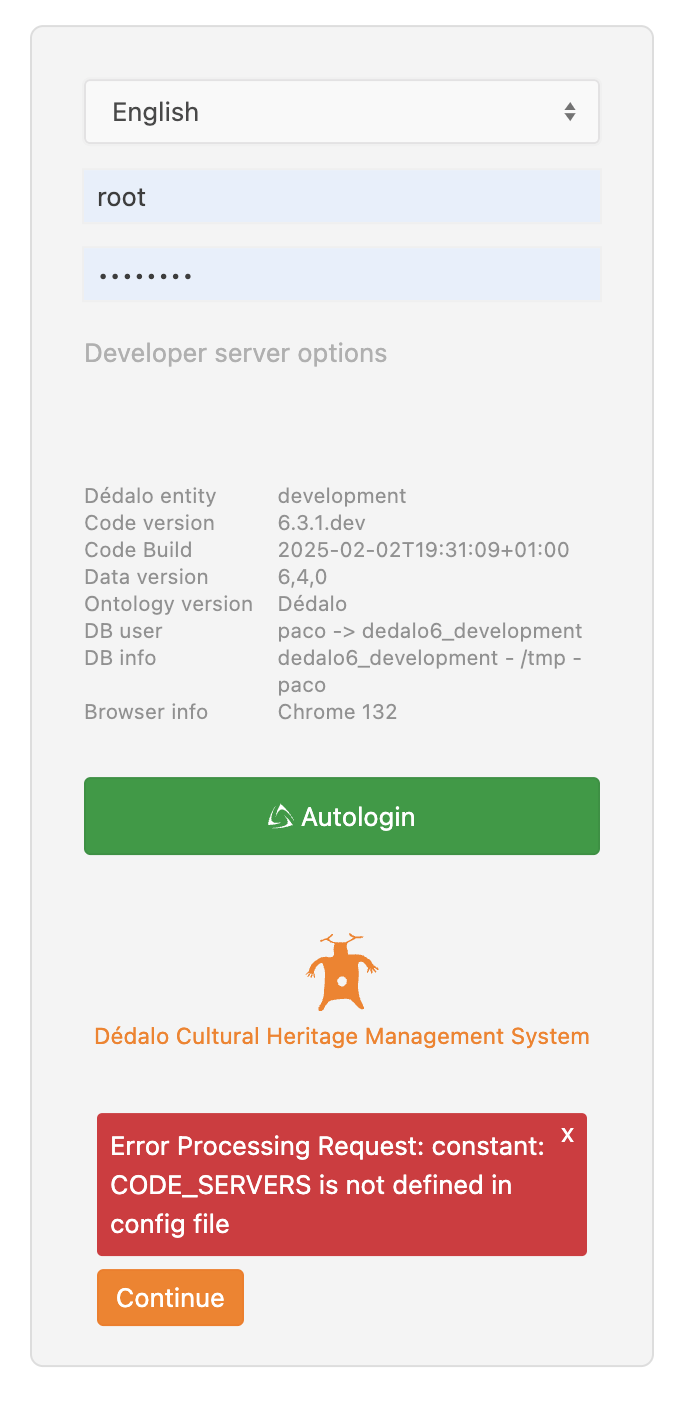
Don't panic and press continue button. Navigate to the area maintenance and check the messages in the Update data or Check config panels about the errors.