Importing data
See also: Exporting data · Locator · Component dataframe · Glossary
How to prepare and import data into Dédalo from CSV files, covering the v7 data format, per-component formats, and the locator-based relation model.
Introduction
Importing data is an important part of Dédalo projects. Dédalo is a highly structured data system; it manages literal data and relationships between data. Data normalization is at the core of the application. Dédalo mainly uses lists, thesauri, resources and other related sections to define its data.
The Dédalo data model has an abstraction layer that uses the ontology definitions to create components (as fields) and sections (as tables).
About plain text / non-normalized data
Lots of catalogues in museums have a previous cataloging system, sometimes created themselves in commercial applications such as FileMaker, Access, etc., and sometimes this data has no structure and is saved as plain text without normalization. This situation creates a lot of data inconsistencies that can lead to situations that are very difficult to resolve. Dédalo can import plain text without any structuring, but it is not recommended. If you want to import this kind of data, we recommend running a cleaning process before importing it into Dédalo.
Format
Dédalo uses the standard CSV to import data, and UTF-8 is the encoding to give it.
A file that is not UTF-8 is not read as if it were. Dédalo either converts it or refuses it, and it always says which:
- a file that carries a byte order mark (UTF-8 or UTF-16) is read in the encoding the mark declares;
- a file that is not valid UTF-8 is converted from windows-1252 (what a European spreadsheet writes when it saves in the system code page), and the conversion is reported as a notice — on the file list, in the preflight and in the import report. A notice is not an error: the file imported, and the notice tells you what was done to it;
- a file that cannot be converted honestly is refused, and nothing is imported: one that contains NUL bytes (a binary file, or UTF-16 saved without its mark) and one that already carries replacement characters (
�), which means its original encoding was lost before it reached Dédalo.
Warning
A converted file is imported from a guess about which encoding it is, and the guess is only a good one for Western European text. Read the notice, check the imported values, and re-export the file as UTF-8 to remove the guess. Exporting in UTF-8 in the first place is the only way to be sure an accent arrives as the character it left as.
A file whose shape cannot be trusted is refused whole
Two more refusals belong to the same rule, and neither is about encoding: a row whose number of columns disagrees with the header (every value after the mismatch would be imported into the wrong component), and a quoted value that is opened and never closed (the rest of the file is swallowed into that one cell). Both name the row, nothing is imported, and the fix is in the file.
Byte Order Mark (BOM)
BOM is accepted in some cases, but in general and according to the Unicode standard, the BOM for UTF-8 files is not recommended:
2.6 Encoding Schemes
... Use of a BOM is neither required nor recommended for UTF-8, but may be encountered in contexts where UTF-8 data is converted from other encoding forms that use a BOM or where the BOM is used as a UTF-8 signature. See the “Byte Order Mark” subsection in Section 23.8, Specials, for more information...
Dédalo's own CSV and TSV downloads do carry one, for exactly the signature use the standard describes: without it a spreadsheet opens the file in the system code page and saves it back in that code page, which is the badly encoded file the import door then has to convert. On import the mark is read and removed — it never reaches a record.
By default Dédalo uses a stringified JSON encoding in UTF-8 with double-quote "" escape marks for the data.
Example of locator:
[{
    "type":"dd151",
    "section_id":2,
    "section_tipo":"rsc723"
}]
Will need to be encoded in CSV format as:
"[{""type"":""dd151"",""section_id"":2,""section_tipo"":""rsc723""}]"
But you can use plain text to import flat data.
Example of text:
My plain text without double quotes
It will need to be encoded in CSV format as:
My plain text without double quotes
Example of text with double quotes inside:
my plain text with "double quotes"
It will need to be encoded in CSV format as:
"my plain text with ""double quotes"""
File nomenclature (optional)
It is highly recommended to use only ASCII characters in the name of import files, so try to use names without spaces, accents or any special character.
Adding the section to the filename
Filenames can be used to detect the section automatically on import; you can specify it in this way:
my_name_to_identify_data-section_tipo.csv
Example, a file with interviews data to import into the Interviews section oh1:
interviews_2015-oh1.csv
But you can indicate the destination section in the import CSV tool.
Using editors
You can use an editor to create the CSV import files. If you want to use a spreadsheet editor such as LibreOffice Calc, remember that you will need to export the CSV with UTF-8 encoding.
Using a spreadsheet
Dédalo data can be represented as a spreadsheet with columns and rows. The columns represent the components (fields), and the rows represent the records.
Every CSV import file represents a single section. If you need to import multiple sections, you will need a separate CSV file for each one. To import into the "Types" section numisdata3, the CSV file must be named using its section_tipo as follows:
my_import_types-numisdata3.csv
Every column represents a component (field) and every row represents a record; the data is the cell that crosses the column and the row.
| column A | column B | column X |
|---|---|---|
| data1A | data1B | data1X |
| data1B | data2B | data2X |
Defining the target component in the column name
Every column in the first row of the file, the head, contains the ontology tipo of the target component of the section to be imported. At least one column must be set as the section_id to identify the column with the unique id; by convention it is the first one, but this is not mandatory.
To import the component Key numisdata81 and the component Number numisdata27 as fields of the Types section numisdata3, you will need to create a CSV as:
| section_id | numisdata81 | numisdata27 |
|---|---|---|
| 1 | [{"value":"key1"}] | [{"value":"062"}] |
| 2 | [{"value":"key2"}] | [{"value":"685a"}] |
Columns with names instead of the ontology tipo
You can use "human" names in the columns, but the import tool will not match them to the component and you will need to set it manually before import.
The previous CSV could be named in this way:
| id | Key | Number |
|---|---|---|
| 1 | [{"value":"key1"}] | [{"value":"062"}] |
| 2 | [{"value":"key2"}] | [{"value":"685a"}] |
But it will not match and you will need to set the component tipo inside the import tool.
The header must match the mapped column exactly
During the import, every CSV header is compared with its mapped column name and they must match exactly, including suffixes as tch56_dmy (date format) or tch191_rsc723 (relation target). Columns whose header does not match are silently skipped — no data is imported for them and no error is reported. Review the column mapping in the import tool before launching the import.
You can know the ontology tipo of the component picking one component and Dédalo will show it inside the info part of the inspector:
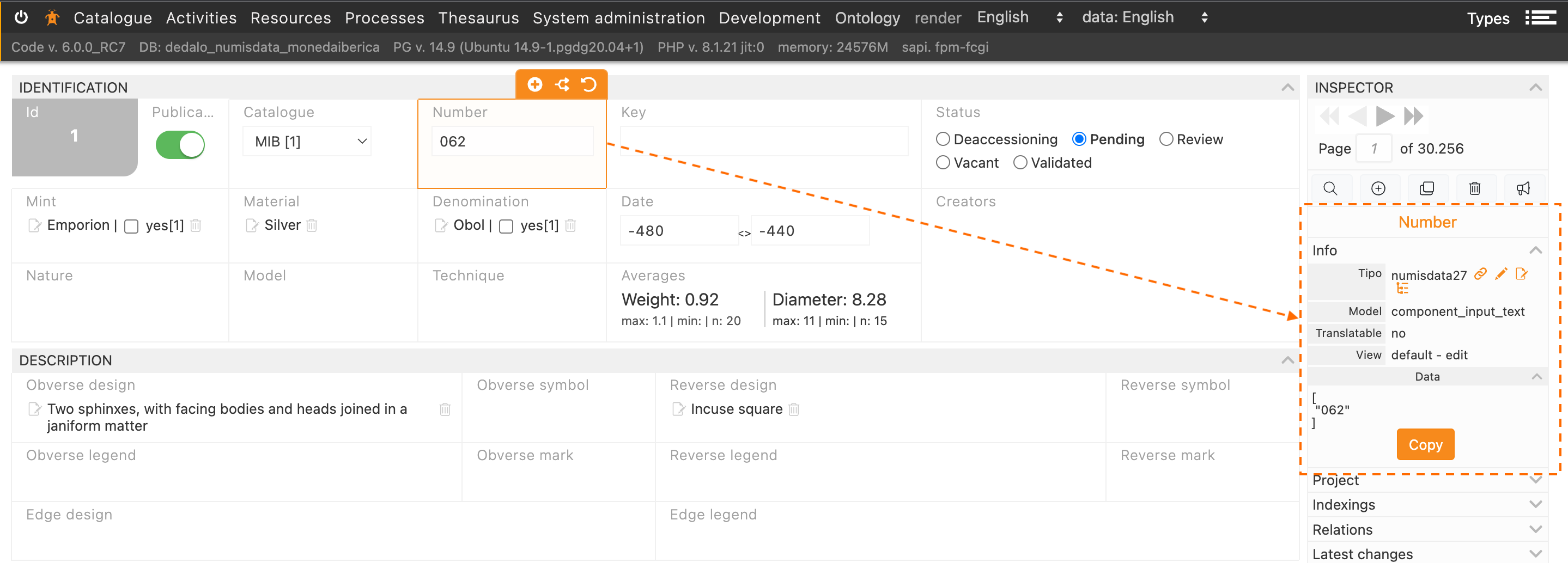
Besides, Dédalo shows the component data format and you can copy it, as [{"value":"062"}].
Also you can check the ontology here.
Data formats
The v7 data format
Dédalo v7 stores component data as arrays of objects. Every object in the array is one value of the component, and the property that holds the data depends on the component type:
| Component type | v7 format | Data property |
|---|---|---|
component_input_text |
[{"value":"Hello"}] |
value |
component_text_area / component_html_text |
[{"value":"<p>Hello</p>"}] |
value |
component_email |
[{"value":"a@b.com"}] |
value |
component_number |
[{"value":5.87}] |
value |
component_json |
[{"value":{"any":"JSON"}}] |
value |
component_date |
[{"start":{"year":2023,"month":10,"day":26}}] |
start / end |
component_iri |
[{"iri":"https://dedalo.dev"}] |
iri |
component_geolocation |
[{"lat":39.4625,"lon":-0.3762,"zoom":16,"alt":0}] |
lat / lon |
| Relation components (select, portals, etc.) | [{"section_id":2,"section_tipo":"rsc723"}] |
section_id / section_tipo |
The v7 format is the canonical import format: what you see in the component inspector and in raw exports is what you import.
id and lang properties
Stored data also carries id and lang properties, as [{"value":"Hello","lang":"lg-eng","id":1}]. Both are auto-assigned by the import process when omitted. The lang property can be set explicitly to import multiple languages at once (see Multiple languages); the id property should be omitted, except for component_iri where it pairs the value with its label dataframe.
v6 legacy format (accepted)
Dédalo v6 stored plain value arrays as ["Hello"] or [104,-75.35]. This input is still accepted and automatically normalized to the v7 format on save, so old v6 CSV files import without changes.
Besides the JSON formats, every component accepts simple flat string alternatives (a plain text, a number, a date as 2023/10/26, a list of ids as 1,4,6...) described in each component section below. Flat strings are the easiest way to write a CSV by hand.
The dedalo_data wrapper
Data exported with the tool export in dedalo_raw format is wrapped with the dedalo_data property:
{"dedalo_data":[{"value":"Hello","lang":"lg-eng","id":1}]}
The wrapper identifies externally that the content is Dédalo format data and not any other generic value. The import process detects and unwraps it transparently, then conforms the value like any typed input — it is not a verbatim round trip of the stored row (component_text_area markup and component_geolocation item ids change; empty cells become explicit clears; locators are checked for shape only). For a lossless copy of a section set use the archive door (see The archive door). Un-wrapped v7/v6 values remain fully accepted; the wrapper is only mandatory to disambiguate component_json data (see JSON).
What is not wrapped
Two cases are exported without the wrapper, and both import as intended: the section_id column (a plain int, used as the record key on import) and components without data (empty cells). The wrapper is detected only when dedalo_data is the only property of the cell object — a JSON value that merely contains a dedalo_data property among others is treated as a normal value.
Dataframe columns
A dataframe is a component of its own, with its own stored data, so it travels in its own column, headed by the dataframe component's tipo — never inside the column of the component it frames:
rsc217 |
dd560 |
|---|---|
{"dedalo_data":[{"value":"Hello","lang":"lg-eng","id":1}]} |
{"dedalo_data":[{"type":"dd490","section_tipo":"dd1706","section_id":3,"id_key":1,"from_component_tipo":"dd560","main_component_tipo":"rsc217"}]} |
A raw export writes the dataframe column right after the component it belongs to, and writes it for every record of the export — empty where a record has no frames.
In Append mode the pairing is re-established against the final ids: a frame is paired with the item its main value became after the append — or with the existing item, when that value was already present and skipped. Frames already stored are not added twice, and the dataframe's data_limit still applies.
What links the two columns is the data, not their position: each frame locator's id_key pairs it with the item carrying the same id in the main component (this is why explicit item ids round-trip). Import the dataframe column like any other component column and the pairing is restored; import it alone and only the frames are written, leaving the framed component untouched.
Legacy envelope (accepted)
Files exported before Dédalo 7 (2026-08-09) carry the frames folded into the framed component's own cell, as {"dedalo_data":{"data":[...],"dataframe":[...]}} — with dato instead of data in v6-era files. Both spellings still import, frames included; neither is ever written any more. An envelope carrying only dataframe writes just the frames and leaves the component data untouched.
Empty cells
An empty cell clears the existing data (replace mode)
In the default Replace mode an empty CSV cell is imported as null and clears the existing data of that component for that record (and for the current data language when the component is translatable). If you don't want to touch a component in some records, don't include its column in the CSV file, split the import into several files, or set the column to Append mode, where an empty cell changes nothing.
Replace or append
Each mapped column is imported in one of two modes, chosen per column in the import tool (see Adding instead of replacing):
- Replace (the default) — the cell becomes the component's data, as described throughout this page. An empty cell clears it.
- Append — the cell's values are added after the stored ones; nothing already stored is changed. A value already present is skipped and reported as a warning, so re-importing the same file adds nothing. An empty cell, or an empty language group such as
{"lg-spa":[]}, changes nothing, and an empty value inside a cell is never added as a blank entry. A cell with several languages on a component that is not translatable adds all its values to the component's one language-neutral set.
The cell formats are the same in both modes: a cell is conformed exactly as this page describes, and only what happens to the stored data differs. Append is available for the list-shaped components — text, email, number, date, URI, related data and dataframes — plus geolocation (a new layer) and formatted text (a new paragraph). It is refused, before anything is written, for media, single-choice components (select, radio button, language, publication, model), single-document components (JSON, password, permissions, record filters), computed components (info, inverse, external, children, index), the section_id column and the record's creation and modification stamps.
Undoing an import
Every import runs as one bulk process and can be reverted as a whole from the Time machine, in either mode. Each change the import makes records the value it replaced, so the revert puts back exactly what each record held before — also for components that had no earlier history — and leaves alone, and reports, any value edited after the import. There is no option to import without this record.
Text
Component: component_input_text.
Canonical v7 input, array of objects with value:
[{"value":"my import data"},{"value":"Other data"}]
Multiple languages
For translatable components you can import multiple languages at once in two equivalent ways:
-
Flat v7 array (the stored v7 format, as produced by the raw export): every item carries its own
langproperty:[ {"value":"mi dato para importar","lang":"lg-spa"}, {"value":"my import data","lang":"lg-eng"} ] -
Lang keyed object: one property per language, each holding its items:
{
    "lg-spa" : [{"value":"mi dato para importar"}, {"value":"Otro dato"}],
    "lg-eng" : [{"value":"my import data"}, {"value":"Other data to import"}]
}
Encoded in CSV format as:
section_id;rsc86
1;"{""lg-spa"":[{""value"":""mi dato para importar""},{""value"":""Otro dato""}]}"
In both cases every language present in the import value replaces that language data, and the languages not present are preserved. Items without lang are saved into the Dédalo data lang defined by the user in menu.
Alternative formats to import text
-
Plain text (the simplest)
section_id oh14 1 new data to import The import process assumes the Dédalo data lang defined by the user in the menu and imports the value as the single value in the array. If previous data exists in that lang, it is replaced with a new array holding the import value.
-
An array of string values (v6 format)
section_id oh14 1 ["mi dato para importar","Otro dato"] The import process assumes the Dédalo data lang defined by the user in the menu and saves into this lang, or, if the component is non-translatable, uses
lg-nolan. Each string is automatically wrapped into a v7 object with avalueproperty. -
Multi-language object with plain strings
{"lg-eng":"My value","lg-spa":"Mi valor"}Each lang value is normalized to the v7 format and saved into its own language.
Formatted text
Components: component_text_area and component_html_text.
Dédalo uses standard HTML format to import formatted text. As Dédalo uses CKEditor as its text editor, the accepted HTML tags are the same as CKEditor:
-
text_areaaccepts:<p></p> // a Paragraph <strong></strong> // Bold text <i></i> // Italic text <u></u> // Underscore text -
html_textaccepts:<p></p> // a Paragraph <strong></strong> // Bold text <i></i> // italic text <u></u> // underscore text <s></s> // Strikethrough text <Code></Code> // programming code <sub></sub> // Subscript text <sup></sup> // Superscript text
Import behavior for text_area vs html_text
Both components use the same import format and data structure. The difference is only in which HTML tags are preserved after import. text_area will strip unsupported tags (like <s>, <code>, <sub>, <sup>), while html_text preserves them.
Besides, import format text support some compatible elements and CSS styles:
<b>             <* style="font-weight: bold"> // (or numeric values that are greater or equal 600)
<em>            <* style="font-style: italic">
                <* style="text-decoration: underline">
<del><strike>   <* style="text-decoration: line-through">
                <* style="word-wrap: break-word">
                <* style="vertical-align: sub">
                <* style="vertical-align: super">
Note
These elements and styles are changed to supported elements during the import process.
Canonical v7 input:
[{"value":"<p>El meu text per <strong>importar</strong></p>"},{"value":"<p>Altra dada</p>"}]
Multi-language input, as flat v7 array (per-item lang, the raw export format) or as lang keyed object — see Multiple languages:
[
    {"value":"<p>Les meves dades per <strong>importar</strong></p>","lang":"lg-cat"},
    {"value":"<p>My data to <strong>import</strong></p>","lang":"lg-eng"}
]
{
"lg-cat" : [{"value":"<p>Les meves dades per <strong>importar</strong></p><p> </p><p>Amb 2 paragraphs</p>"}],
"lg-eng" : [{"value":"<p>My data to <strong>import</strong></p><p> </p><p>With 2 paragraphs</p>"}]
}
Encoded in CSV format as:
section_id;numisdata18
1;"{""lg-cat"": [{""value"":""<p>El meu text per <strong>importar</strong></p>""},{""value"":""<p>Altra dada</p>""}]}"
Alternative formats to import formatted text
-
Formatted text (flat string, the simplest)
section_id numisdata18 1 <p>Nou text per <strong>importar</strong></p> -
Plain text (without HTML)
section_id numisdata18 1 new data to import The text will be wrapped automatically into
<p></p>paragraphs, and line returns become new paragraphs. -
An array of string values (v6 format)
section_id oh14 1 ["<p>El meu text per <strong>importar</strong></p>","<p>Altra dada</p>"]
In the flat string cases the import process assumes the Dédalo data lang defined by the user in the menu and imports the value as the single value in the array, replacing previous data of that lang.
Append mode: a new paragraph
In Append mode the cell is added at the end of the stored text of its language, as a new paragraph: Altra dada is stored as <p>Altra dada</p> after the existing paragraphs, and a paragraph identical to one already present is skipped. A cell that carries any indexation tag (below) is rejected in append mode: tags are tied to the index entries that point at them, and an addition cannot keep that pairing. Import tagged text in Replace mode.
Indexation tags
Dédalo uses non-standard HTML tags to define indexation tags, tc, person, language, notes and references.
The main format of these tags follows these rules:
- The tag is enclosed by
[] - the elements are separated by the
-character - the first element is
tag_namewith the standard name of the tag - the second element is the
stateof the tag with n|r|d options, n=normal, r=to review, d=deleted. - unique id of the tag, int.
- data::data enclosing the locator in the case that this tag has a link to any data.
- locator is a stringified version with the double quotes
"replaced with simple quotes'
[tag_name-state-id-label-data:locator:data]
index
The index tag defines a fragment inside formatted text. The index tag has an in and out format; the fragment sits in the middle of these tags.
indexIn
Mark the initial position of the indexation fragment.
Example:
[index-n-1-my tag label-data::data]
indexOut
Mark the out position of the indexation fragment.
Example:
[index-n-1-my tag label-data::data]
tc
The tc tag is used to point to a specific audiovisual timecode at the beginning of paragraphs; it is used to create a time relation between the text and its audiovisual time.
The tc tag has its own format: the tc is enclosed by TC_ and _TC marks.
[TC_hh:mm:ss.ms_TC]
[TC_00:01:25.627_TC]
lang
The lang tag is used to mark the change from the previous language. Example, an interview in Catalan in which the interviewee begins to speak in French.
[lang-a-1-spa-data:['lg-spa']:data]
section_id inside a tag is quoted on purpose
A record address is an integer everywhere in the engine's API. The locator
embedded in an inline tag is the one exception you will see below: it is
serialized into the text string itself, and its byte form is fixed
contract for the consumers that parse it, so it keeps the quoted
'section_id':'2' shape.
svg
The svg tag is used to add a graphic within the text. The tag uses a locator to point to the svg section. Example to add an Iberian symbol inside a legend text.
Example:
[svg-n-1--data:{'section_tipo':'sccmk1','section_id':'2','component_tipo':'hierarchy95'}:data]
geo
The geo tag is used to add some features as, polygons, points, or marks.
Example:
[geo-n-10-10-data::data]
page
The page tag is used to mark a page break inside text.
Example:
[page-n-3]
person
The person tag is used to mark a person who begins to talk. The tag uses a locator to point to the People under study rsc197 section.
[person-a-1-Pedpi-data:{'section_tipo':'rsc197','section_id':'1','component_tipo':'oh24'}:data]
note
The note tag is used to add an annotation in text. The annotation uses a locator to point to the Annotations rsc326 section. The state of the note can be a | b, a=private, b=public.
Example:
[note-a-1-1-data:{'section_tipo':'rsc326','section_id':1}:data]
reference
The reference tag is used to link to any other section. It uses the locator to point at any other section. The reference works like an HTML <a href><a> element. References have an in and out tag to indicate the beginning and end of the reference.
referenceIn
[reference-n-1-reference 1-data:[{'section_tipo':'fr1','section_id':'1','type':'dd151'}]:data]
referenceOut
[/reference-n-1-reference 1-data:[{'section_tipo':'fr1','section_id':'1','type':'dd151'}]:data]
Numbers
Component: component_number. The component does not use languages.
Canonical v7 input:
[{"value":104},{"value":-75.35}]
Encoded in CSV format as:
section_id;numisdata133
1;"[{""value"":104},{""value"":-75.35}]"
Alternative formats to import numbers
-
Plain number (the simplest)
section_id numisdata133 1 33.85 The import process assumes this data is the full data; if previous data exists, it is replaced with a new array holding the import value.
The decimal separator (
.or,) can be selected in the import tool for every number column. -
An array of numbers (v6 format)
section_id numisdata133 1 [104,-75.35]
Component: component_email. The component does not use languages.
Canonical v7 input:
[{"value":"user@example.com"},{"value":"admin@example.com"}]
Encoded in CSV format as:
section_id;tch442
1;"[{""value"":""user@example.com""},{""value"":""admin@example.com""}]"
Alternative formats to import emails
-
Plain email string (the simplest)
section_id tch442 1 user@example.com -
Multiple emails with the
|separatorsection_id tch442 1 user@example.com | admin@example.com will be parsed as:
[{"value":"user@example.com"},{"value":"admin@example.com"}]Fixed separator
The
|separator (space, pipe, space) is fixed and not configurable. An address containing a literal|cannot be imported as flat string: use the JSON array format instead. -
An array of strings (v6 format)
section_id tch442 1 ["user@example.com","admin@example.com"]
Dates
Component: component_date. The component does not use languages. The main format to import is the array of objects with start and optional end dd_date values.
Canonical v7 input:
[{
   "start" : {
        "year": 1238,
        "month": 10,
        "day": 9
    }
}]
Encoded in CSV format as:
section_id;tch56
1;"[{""start"":{""year"":1238,""month"":10,""day"":9}}]"
Alternative formats to import dates
-
A punctual date in flat string :
-205/05Example:
section_id tch56 1 -205/05 It's allowed to use different formats indicating it in the name of the header as tch56_dmy.
section_id tch56_dmy 1 05/-205 It's allowed to use different separator between values of elements.
-205-05 15-11--50 15.11.-50 -
A range of dates in flat string:
2023/10/26<>2023/10/27The '<>' separator indicates the range, with the start date on the left and the end date on the right.
[{
    "start" : {
        "year": 2023,
        "month": 10,
        "day": 26
    },
    "end" : {
        "year": 2023,
        "month": 10,
        "day": 27
    }
}]
You can leave spaces between dates and the separator.
-150 <> 238is a valid range date, but the separator must always keep the same format; a space between the marks is not allowed:
-150< >238is not a valid range.
It's allowed to use different formats indicating it in the name of the header as tch56_dmy.
section_id tch56_mdy 1 10/26/2023<>10/27/2023 It's allowed to use different separator between values of elements.
10-26-2023<>10-27-2023 10.26.2023<>10.27.2023 -
Multi value date in flat string
2023/10/26|1853/02/18The '|' separator indicates multiple values. The values are not start <> end dates; both are start dates, and the second one is the start date of the second value.
The previous string date will be parsed as:
[
    {
        "start" : {
            "year": 2023,
            "month": 10,
            "day": 26
        }
    },
    {
        "start" : {
            "year": 1853,
            "month": 02,
            "day": 18
        }
    }
]
You can leave spaces between dates and the separator.
-150 | -25It's allowed to use different formats indicating it in the name of the header as tch56_dmy.
section_id tch56_mdy 1 10/26/2023|02/18/1853 It's allowed to use different separator between values of elements.
10-26-2023|02-18-1853 10.26.2023|02.18.1853 -
Combination of multi value and range
2023/10/26<>2023/10/27|1853/02/18To define multiple values with ranges you can use a combination of the '|' to indicate the multi value and the '<>' to indicate the range.
The previous string date will be parsed as two date values, with the range of the first value having start and end dates:[ { "start" : { "year": 2023, "month": 10, "day": 26 }, "end" : { "year": 2023, "month": 10, "day": 27 } }, { "start" : { "year": 1853, "month": 02, "day": 18 } } ]You can leave part of the range blank:
2023/10/26|<>1853/02/18[ { "start" : { "year": 2023, "month": 10, "day": 26 } }, { "end" : { "year": 1853, "month": 02, "day": 18 } } ]You can leave spaces between dates and the separators.
2023/10/26 | <> 1853/02/18It's allowed to use different formats indicating it in the name of the header as tch56_dmy.
section_id tch56_mdy 1 10/26/2023|<>02/18/1853 It's allowed to use different separator between values of elements.
10-26-2023\|<>02-18-1853
10.26.2023\|<>02.18.1853
Using other date formats
By default the string date formats use [-]y/m/d, but you can import the date in other formats by indicating the format in the column header as a second parameter after the tipo, using the _ character between them.
| section_id | tch56_dmy |
|---|---|
| 1 | 05/-205 |
You can use these formats
| Format | Description |
|---|---|
| ymd | year/month/day as 2023/10/26 |
| mdy | month/day/year as 10/26/2023 |
| dmy | day/month/year as 26/10/2023 |
Using other separators
The default separator between day, month and year is /, but you can use - and .
20-10-1945
2023-10-26|<>1853-02-18
-200<>50-11|-150-10
11-12--200|28-10-5
20.10.1945
2023.10.26|<>1853.02.18
-200<>50.11|-150.10
11.12.-200|28.10.5
Related data
Understanding relationships between data
Dédalo uses a data relation model based on locators; sections are connected to each other with locators. Any related data is connected by locators: a list shown in a select is connected by locators, an image inside a section is connected by locators. Dédalo uses locators everywhere.
Locators are an extensible connection between data and can point to a full section, a component inside a section, or a part of the components inside a section. Besides, locators can create links to external data.
When you want to import data with relations, you will use locators.
Basic locator has only two properties:
- section_tipo
- section_id
section_tipo is the ontology tipo of the target section, section_id is the unique id of the target section.
section_id is an integer
A CSV cell is text, but a record address is an integer (negatives valid). On import every locator's section_id is classified against its target section:
- an integer, or text convertible to one (
2,"2") → stored as the integer; - a remote id of an external service section (
"001338683","Q42") → stored verbatim, it is not an address; - anything else — a synthetic token, a zero-padded or out-of-range number on a normal section — is a conform error: the cell is rejected and reported, and the record keeps its previous value.
Law: engineering/wire_contract/WC-2026-08-10-section-id-int-canonical.md.
Also the locator has a type, that defines the relation type and from_component_tipo that defines the origin component (the field that point to target section, the portal).
Data linked as:
erDiagram
    Types-numisdata3 ||--o{ Mints-numisdata6 : has
    Types-numisdata3 {
        int section_id PK "1"
        locator Mint-numisdata30 "5"
    }
    Mints-numisdata6 {
        int section_id PK "5"
        string Name-numisdata16 "Arse Saguntum"
    }
It says that Type 1 has a link with Mint 5. The field Mint numisdata30 in the section Types numisdata3 has a link to id 5 of the section Mints numisdata6
In Dédalo format it will be: the record's row in the section's matrix table carries the locator inside its relation column (a typed JSONB column keyed by component tipo — see the matrix storage model), not inside the component's own value:
{
    "section_id": 1,
    "section_tipo": "numisdata3",
    "relation":
    {
        "numisdata30":
        [
            {
                "section_id":5,
                "section_tipo":"numisdata6",
                "from_component_tipo": "numisdata30"
            }
        ]
    }
}
And it could be represented in CSV spreadsheet columns in this way:
types-numisdata3.csv
| section_id | numisdata30 |
|---|---|
| 1 | [{"section_id":5,"section_tipo":"numisdata6","from_component_tipo": "numisdata30"}] |
Importing
By default the import model uses the JSON format of its data, an array of locators.
[{"type":"dd151","section_id":2,"section_tipo":"rsc723","from_component_tipo":"tch191"}]
Because the Dédalo import process uses a plain CSV file, the JSON data must be stringified in the following way:
The table to import
| section_id | tch191 |
|---|---|
| 1 | [{"type":"dd151","section_id":2,"section_tipo":"rsc723","from_component_tipo":"tch191"}] |
Will need to be encoded in CSV format as:
section_id;tch191
1;"[{""type"":""dd151"", ""section_id"":2, ""section_tipo"":""rsc723"", ""from_component_tipo"":""tch191""}]"
You can remove the type and from_component_tipo properties because the column head specifies the value of from_component_tipo and the component knows its own type. So you can define the previous locator to import in this way:
[{"section_id":2,"section_tipo":"rsc723"}]
Alternative formats to import related data
-
A comma separate int (as destination section_id):
1,4,6To import this data, you must specify, in the column head of the component, the section_tipo using the
_character between them:component_tipo + '_' + section_tipoExample:
tch191_rsc723
In this case the import process assumes that all int values are section_id, the section_tipo comes from the second tipo in the column head, from_component_tipo comes from the first tipo in the column head, and type is calculated by asking the component on the server.
Example:
section_id tch191_rsc723 1 1,4,6 will be parsed as:
[
    {"type":"dd151","section_id":1,"section_tipo":"rsc723","from_component_tipo":"tch191"},
    {"type":"dd151","section_id":4,"section_tipo":"rsc723","from_component_tipo":"tch191"},
    {"type":"dd151","section_id":6,"section_tipo":"rsc723","from_component_tipo":"tch191"}
]
When the component points to multiple sections, this import method does not preserve other sections' values in its data. Previous data pointing to sections other than the one indicated in the head is removed.
-
Importing unique values
You can import a single int as section_tipo
Example:
section_id tch191_rsc723 1 6 -
Removing section_tipo reference in head.
You can remove the section_tipo in the head of the column when the component points to only 1 section.
Example:
section_id tch191 1 1,4,6 Components using with multiple sections
This possibility is only available when the component points to 1 section. Multiple sections cannot be imported in this way.
In this case the import process asks the component on the server for the section_tipo to be used; if the component has multiple sections it fails to import, to avoid errors and inconsistencies.
-
Languages (select_lang)
Component: component_select_lang. It is a relation component pointing to the Dédalo languages section, used to specify the language of a content (e.g. the language of a text or an audiovisual).
Canonical v7 input, array of locators:
[{"section_tipo":"lg1","section_id":17344}]
Alternative formats to import languages
-
A lang code in flat string (the simplest)
section_id rsc36 1 lg-spa -
Multiple lang codes separated by comma
section_id rsc36 1 lg-spa, lg-eng -
A JSON array of lang codes
section_id rsc36 1 ["lg-spa","lg-eng"]
Every code is resolved to its locator in the languages section. An unresolvable code (e.g. lg-zzz) produces a failed row and the value is ignored.
Lang codes must be lowercase alphanumeric with the lg- prefix (lg-spa, lg-eng, lg-vlca); uppercase variants as LG-SPA are not recognized as lang codes.
Languages not configured in the project
A valid lang code that is not part of the project configured languages (DEDALO_PROJECTS_DEFAULT_LANGS) is imported anyway, and the import report shows a warning: the value is saved but it will not be accessible until the project languages include it.
Geolocation
Component: component_geolocation. The component does not use languages. The data is an array with one item defining the map center (lat, lon), the map state (zoom, alt) and, optionally, the drawn shapes as GeoJSON layers (lib_data).
Canonical v7 input:
[{
    "lat"  : 39.4625,
    "lon"  : -0.3762,
    "zoom" : 16,
    "alt"  : 0
}]
With drawn shapes:
[{
    "lat"  : 39.4625,
    "lon"  : -0.3762,
    "zoom" : 16,
    "alt"  : 0,
    "lib_data" : [{
        "layer_id"   : 1,
        "layer_data" : {
            "type"     : "FeatureCollection",
            "features" : [{
                "type"       : "Feature",
                "properties" : {"layer_id":1},
                "geometry"   : {"type":"Point","coordinates":[-0.3762,39.4625]}
            }]
        }
    }]
}]
Alternative formats to import geolocation
-
Coordinates in flat string (the simplest), as
lat, lon[, zoom[, alt]]with dot decimals:section_id tch102 1 39.4625, -0.3762 2 39.4625, -0.3762, 15 Coordinate order
The flat string order is latitude first (human convention, as map applications show). Note that GeoJSON
coordinatesuse the opposite[lon, lat]order. -
A bare GeoJSON FeatureCollection:
{"type":"FeatureCollection","features":[{"type":"Feature","properties":{},"geometry":{"type":"Point","coordinates":[-0.3762,39.4625]}}]}The map center is taken from the first
Pointfeature and the full collection is stored as the layer 1 shapes.
Latitude must be in range [-90, 90] and longitude in [-180, 180]; zoom defaults to 16 and alt to 0 when omitted.
Append mode: a new layer
In Append mode (Add as new layer) a geolocation cell does not replace the map. Each drawn layer of the cell — or, for a flat lat, lon cell, a Point at that position — is added to the stored lib_data as a new layer, numbered after the highest layer id already stored and named layer_<id>. The stored layers and the stored map centre (lat, lon, zoom, alt) are not changed. A layer whose shapes equal a stored layer's is skipped. On a record with no geolocation yet, the cell's first item is stored as it would be in Replace mode, and every later item of the cell (a layer, or a flat point as a Point layer) is added to it as a new layer the same way: the component holds one map, so the values are never stored as separate items the map would not show.
JSON
Component: component_json. The component does not use languages and stores any arbitrary JSON as a single value (monovalue).
By default, the entire cell content becomes the value, whatever it is:
| section_id | test18 |
|---|---|
| 1 | {"config":{"a":1}} |
| 2 | [1,2,3] |
| 3 | hello world |
| 4 | 42 |
Row 1 will be saved as [{"value":{"config":{"a":1}}}], row 4 as [{"value":42}], etc.
The dedalo_data wrapper as disambiguator
Because any JSON is a valid value, a v7 envelope like [{"value":1},{"value":2}] is indistinguishable from a literal JSON value with the same shape — so by default it is imported entirely inside value:
[{"value":[{"value":1},{"value":2}]}]
To import data already in Dédalo v7 format (e.g. re-importing a raw export), wrap it with the dedalo_data property:
{"dedalo_data":[{"value":{"config":{"a":1}},"id":1}]}
The raw export produces this wrapper automatically, so a raw-exported JSON column imports without editing (the component_json facet is the one that honours the wrapper verbatim).
URI
Component: component_iri. The component does not use languages; the main format to import is the array of dd_iri objects.
Data format in version 6.8.0
The data version for the iri component changed in version 6.8.0. The title property is deprecated and will be removed in future versions.
In version >= 6.8.0 use the property label_id to define the title.
[{
    "iri"      : "https://dedalo.dev",
    "id"       : 1,
    "label_id" : 5
}]
iriproperty, mandatory. Defines the URL, it needs to have the protocol and a valid structure with domain.idproperty optional. Defines the unique id of the data, it will be used to be linked with the label dataframe. If omitted, it is auto-assigned on save.label_idproperty optional. Defines the target id (section_id) to be used as value of the label in dataframe.
id exception for component_iri
In general the id property is auto-assigned by the import process and should not be included in the CSV data. The IRI component is the exception: because the label dataframe is paired with the value through its id, you can set it explicitly to control that pairing.
Encoded in CSV format as:
section_id;tch442
1;"[{""iri"":""https://dedalo.dev"",""id"":1,""label_id"":5}]"
Multiple values
To import multiple values in the same component/field, add new object to the array in this way:
[
    {
        "iri"      : "https://dedalo.dev",
        "id"       : 1,
        "label_id" : 5
    },
    {
        "iri"      : "http://monedaiberica.org",
        "id"       : 2,
        "label_id" : 6
    }
]
Languages
The import marks this data as lg-nolan because the component interprets that the URI has no language by default. But sometimes you will handle multilingual URIs, such as Wikipedia articles, so in those cases you can identify the language of the URI in this way:
{
    "lg-spa": [{
        "iri" : "https://es.wikipedia.org/wiki/Escrituras_paleohispánicas"
    }],
    "lg-deu": [{
        "iri" : "https://de.wikipedia.org/wiki/Althispanische_Schriften"
    }]

}
The table to import
| section_id | tch442 |
|---|---|
| 1 | {"lg-spa":[{"iri":"https://es.wikipedia.org/wiki/Escrituras_paleohispánicas"}],"lg-deu":[{"iri":"https://de.wikipedia.org/wiki/Althispanische_Schriften"}]} |
Alternative formats to import URIs
-
Flat string (the simplest):
https://dedalo.devsection_id tch442 1 https://dedalo.dev it will be parsed as:
[{ "iri":"https://dedalo.dev" }] -
Array of strings:
Used to import multiple URIs into the component / field.
["https://dedalo.dev","https://dedalo.dev/docs"]section_id tch442 1 ["https://dedalo.dev","https://dedalo.dev/docs"] will be parsed as:
[ {"iri":"https://dedalo.dev"}, {"iri":"https://dedalo.dev/docs"} ] -
String with id label
To import the id label used to point to a specific value of the list of labels for the URI, use the
,separator in this way:8, https://dedalo.devsection_id tch442 1 8, https://dedalo.dev It will be parsed as:
And it will be processed to create the label relation with a[{ "iri" : "https://dedalo.dev", "label_id" : 8 }]component_dataframepointing to the value 8 and create the relation with thecomponent_iri. Thecomponent_dataframewill point to thesection_id8 that is theDédalolabel.Separator format
Dédalo interprets the
,separator between data to differentiate two parts: the left of the comma is the id label and the right of the comma is the URI. If you are using this separator it is important to add the space between the comma and the URI, because the comma can then be identified when the URI is clear, since sometimes the title or the URI can use this character. To minimize errors, ensure that the space is after the comma in the separator. -
String with label
To import a new label or string value of the label you can use the
,separator in this way:Dédalo, https://dedalo.devsection_id tch442 1 Dédalo, https://dedalo.dev The string value is checked during the import process. If the string value exists in the value list, it is set with its own id (section_id); if it does not exist, a new value is created in the list.
Not available yet — use the label's id instead
This form is not supported by the current import engine: resolving a text label requires a lookup-or-create in the label section, which is not implemented. Such a cell is refused — reported in the run's
failedrows with an explanatory message — rather than imported without its label.Use form 3 above instead, giving the label's id (
8, https://dedalo.dev). A plain URI with no label (forms 1, 2 and 5) imports normally. -
String of multiple values
To import multiple values of the URI, use the
|separator in this way:https://dedalo.dev | https://dedalo.dev/docssection_id tch442 1 https://dedalo.dev | https://dedalo.dev/docs it will be parsed as:
[
    {"iri":"https://dedalo.dev"},
    {"iri":"https://dedalo.dev/docs"}
]
Separator format
Dédalo interprets the
|separator between data to differentiate two or more values. It is possible that some URIs will use this character inside the variables. To minimize errors, ensure that the space is before and after the separator character. -
String of multiple values with label id
You can combine the label string or id with the separator
,and the values separator|in the same string in this way:Dédalo, https://dedalo.dev | https://dedalo.dev/docssection_id tch442 1 Dédalo, https://dedalo.dev | https://dedalo.dev/docs it will be parsed as:
[
    {
        "iri":"https://dedalo.dev",
        "label_id": 8
    },
    {
        "iri":"https://dedalo.dev/docs"
    }
]
Version format < 6.8.0 (deprecated)
Deprecated format
The title property in IRI data was deprecated in version 6.8.0 and replaced by label_id. If you have CSV files using the old title property, they will still be accepted by the import process, but the title value will be ignored. Use label_id instead to preserve the label relationship.
[{
    "iri" : "https://dedalo.dev",
    "title": "Dédalo website"
}]
Migration from title to label_id
To migrate from the deprecated title property to label_id, replace the title string with the section_id of the corresponding label in the label list. For example, if the label "Dédalo website" has section_id 8 in the label list, change "title":"Dédalo website" to "label_id":8. The alternative string format Dédalo website, https://dedalo.dev (shown above) will automatically resolve the label for you.