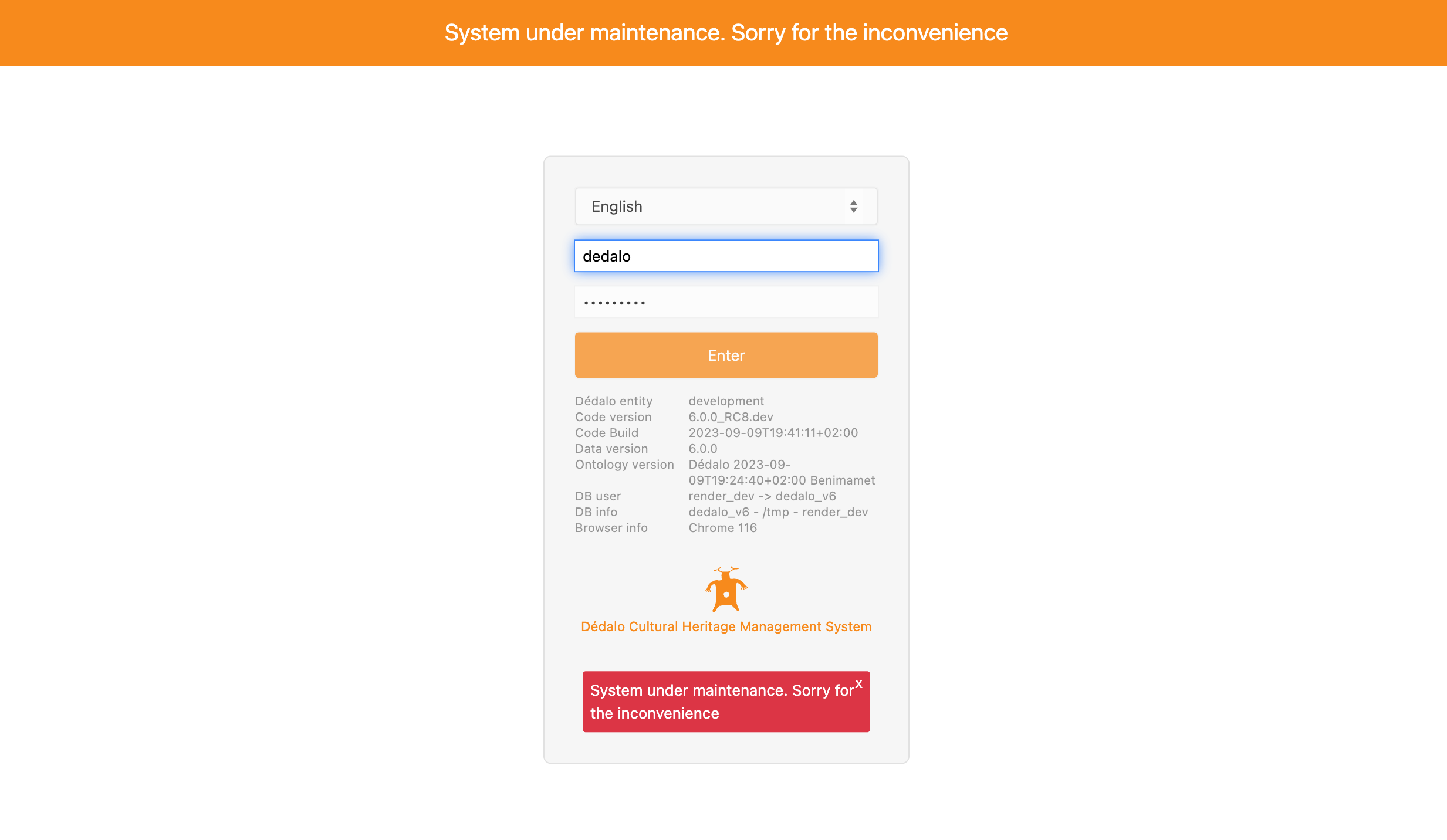
Maintenance mode
See also: Management and maintenance · Updates
Before a new installation or a database upgrade of the Dédalo server, it is highly recommended to change the Dédalo state to "maintenance". This prevents data changes, conflicts and user interaction with new features before they are ready.
Maintenance state closes login to all users, including general administrators; only the root user can enter the work system.
The set_maintenance_mode and set_notification actions (check_config
widget, src/core/area_maintenance/widgets/check_config.ts) persist to the
server's own ../private/ts_state.json (setServerState() in
src/core/resolve/server_state.ts). Enforcement is in two places, and both
matter:
- New logins —
login()(src/core/security/auth.ts) refuses every non-superuser with "Server under maintenance. Please try again later." - Existing sessions — the dispatcher re-checks maintenance on every
request (gate 2b, AUTH-05) and refuses any session that is not root, with
the same unauthenticated shape as an expired session (HTTP 401,
errors: ['not_logged']). Without this, a session minted before maintenance was switched on would keep writing to the matrix tables during a data-version migration — the exact corruption window the gate closes.
Only section_id = -1 (root) passes either check.
Alert to users
Switching to maintenance mode stops non-root users at their very next request. Their sessions are not deleted, but every action is refused, so in practice they are locked out immediately and the client shows them the re-login modal (where logging back in is also refused, with the maintenance message). Anything unsaved on screen at that moment is at risk.
Alert all users before switching to maintenance mode, and give them time to save. Lifting maintenance restores them without a re-login — their session rows were never destroyed, so the next request simply passes the gate again, provided the session has not meanwhile hit one of its own expiry clocks.
The set_notification action works the same way as maintenance mode: it
writes the check_config widget's notification field to ts_state.json
— a string message, or false/empty to disable it.
To alert users, follow these steps:
-
Log in as
root -
Go to the maintenance, and locate the
Check configpanel.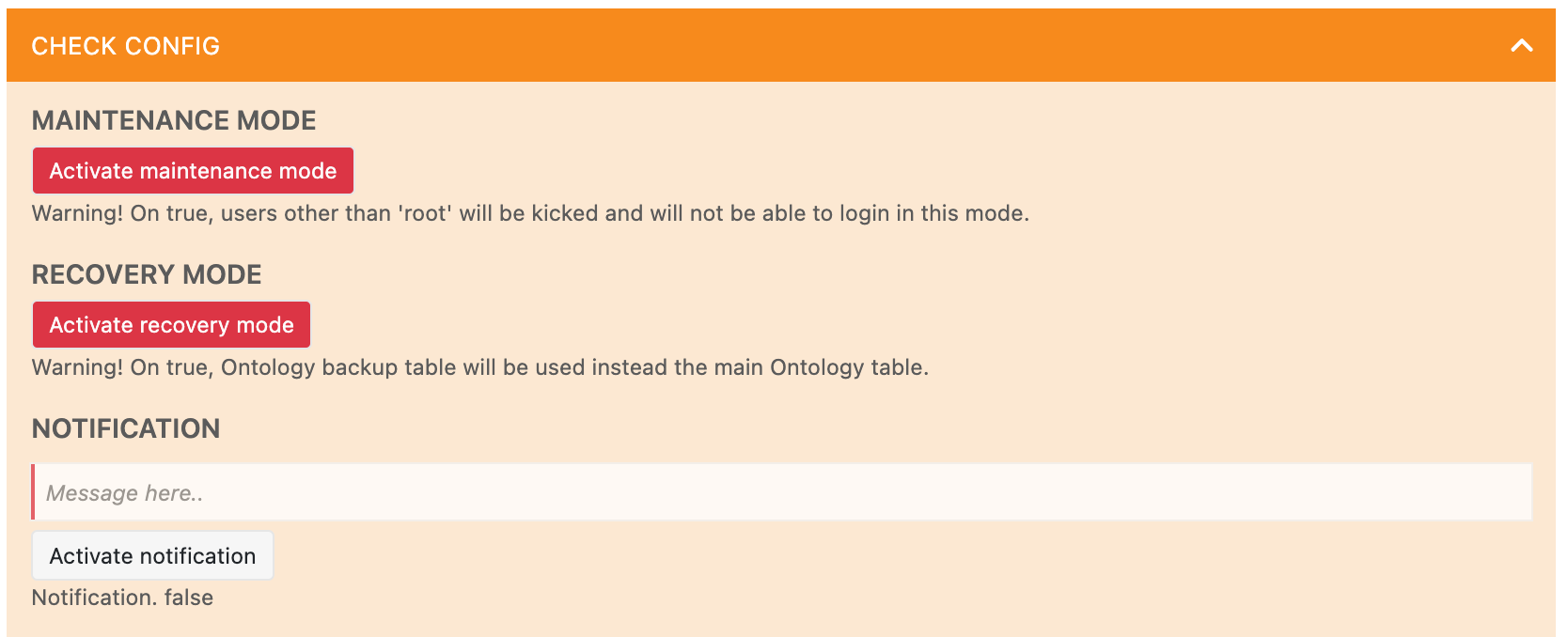
-
Set an alert notification for the users.
Write something like: "The system will shut down in a few minutes for maintenance updates. Please save any unsaved work and log out as soon as possible."
-
Click
Activate notificationto set the alert.
Doing it without the UI (advanced)
The user notification is runtime state, not configuration. The
Activate notification button writes to ../private/ts_state.json for
you (and clears the field when you deactivate it), via setServerState()
in src/core/resolve/server_state.ts.
If you must set it headlessly (e.g. recovery, no UI access), you can edit
the file directly — but note it is normally machine-written, so the UI is
the supported path. The notification value is a plain string (or false
to disable it):
// ../private/ts_state.json
{ "notification": "The system will shut down shortly for maintenance updates — please save your work and log out." }
All users will see the message in all Dédalo pages:

When the user see this alert the user can save his work and logout. Dédalo will work normally.
You can check what users are active in the Maintenance panel "lock components status" (press the Refresh button to show changes) — served by dispatchLockComponentsActions (get_active_users/force_unlock_all_components) in src/core/area_maintenance/widgets/lock_components.ts.

and we recommended check the activity section:
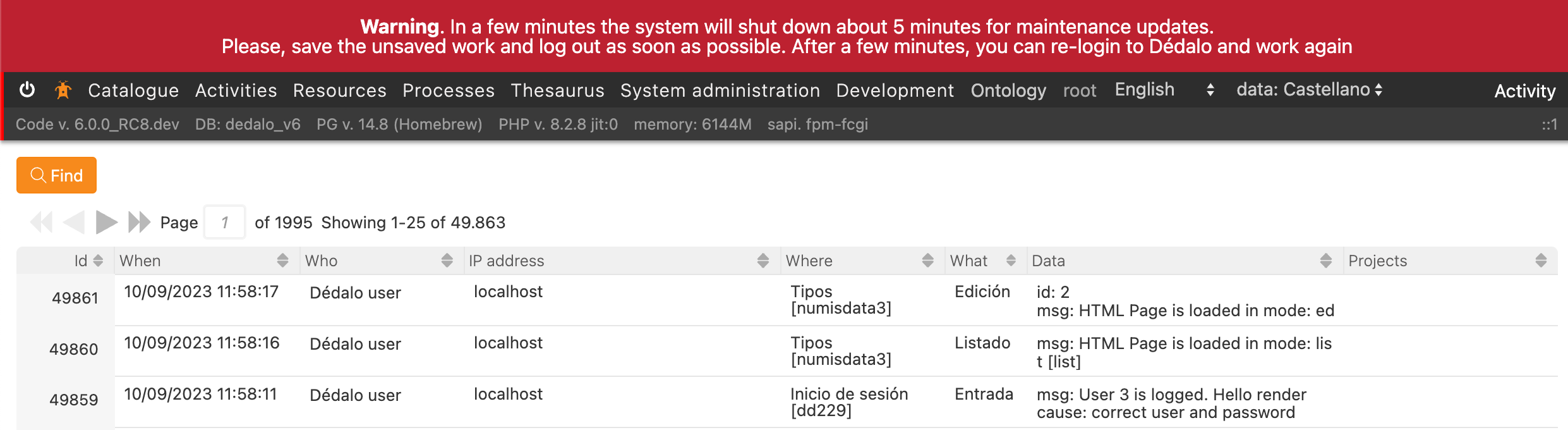
The first rows will be the last users actions.
Changing to maintenance mode
To change the Dédalo status to maintenance follow this steps:
-
log in as root.
-
Go to the maintenance panel, and locate the
Check configpanel. -
Click the
Activate maintenance modebutton.This writes
maintenance_mode: trueto../private/ts_state.json.
Doing it without the UI (advanced)
Maintenance mode is runtime state, not configuration. The Activate
maintenance mode button writes to ../private/ts_state.json for you
(and sets it back when you deactivate).
If you must toggle it headlessly (e.g. recovery, no UI access), you can edit the file directly — but note it is normally machine-written, so the UI is the supported path:
// ../private/ts_state.json
{ "maintenance_mode": true }
While maintenance mode is active, non-superuser logins are refused and users are unable to log in. Only the root user is able to log in. Sessions already open when maintenance mode is switched on are not force-closed — only new login attempts are gated.