Recovery mode
See also: Management and maintenance · Updating ontology
The Dédalo Ontology is the core of the application. If it is damaged or misconfigured for any reason, it can cause the application to crash and the administrator will not have the working interface to fix it.
Dédalo has a recovery_mode flag (set_recovery_mode in the check_config
widget, persisted to ../private/ts_state.json via setServerState() in
src/core/resolve/server_state.ts) that, when set, shows a recovery-mode
banner across the interface so administrators know the installation is in a
degraded state.
Gap: the flag does not swap the served ontology
Setting recovery_mode shows the banner, but nothing on the read path
currently swaps ontology serving over to a minimal emergency table —
there is no live "boot into a bare ontology" mode today. What does exist
is a separate snapshot safety net: build_recovery_version_file and
restore_dd_ontology_recovery_from_file (the build_database_version
widget, src/core/ontology/recovery_file.ts) dump a whitelisted-TLD slice
of dd_ontology to install/db/dd_ontology_recovery.sql.gz and can
restore it into a dd_ontology_recovery table — a snapshot the
ontology update flow leans on, not a table
the server ever reads from directly. Merging a restored snapshot back into
the live dd_ontology is a manual database operation.
Activate recovery mode
If you have access to the area maintenance panel, you can activate recovery mode from the Check config tab.
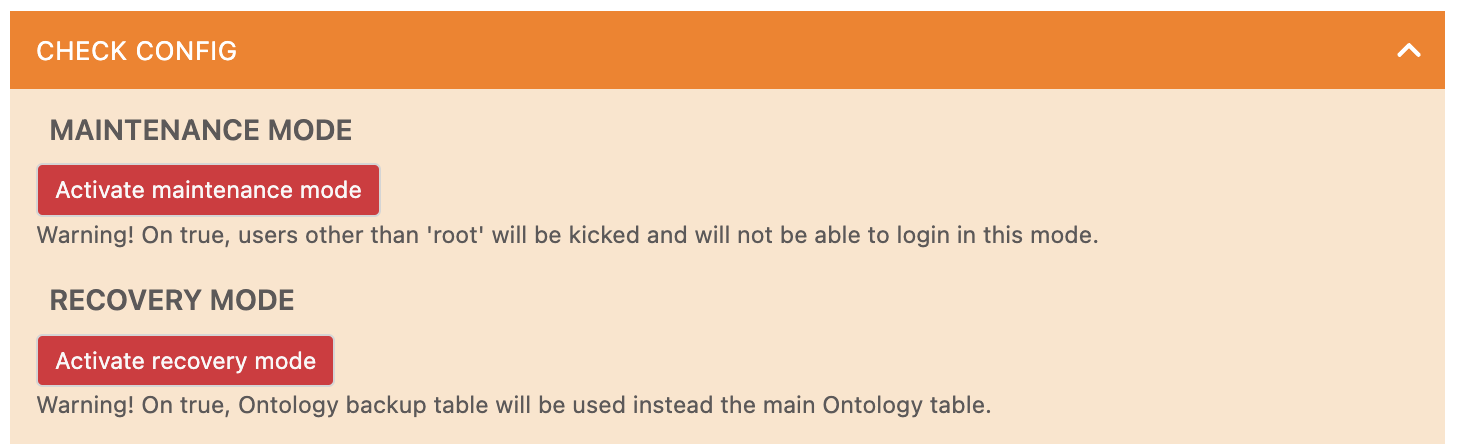
Press the button to toggle recovery_mode in ../private/ts_state.json; the
recovery-mode banner appears immediately for every user:

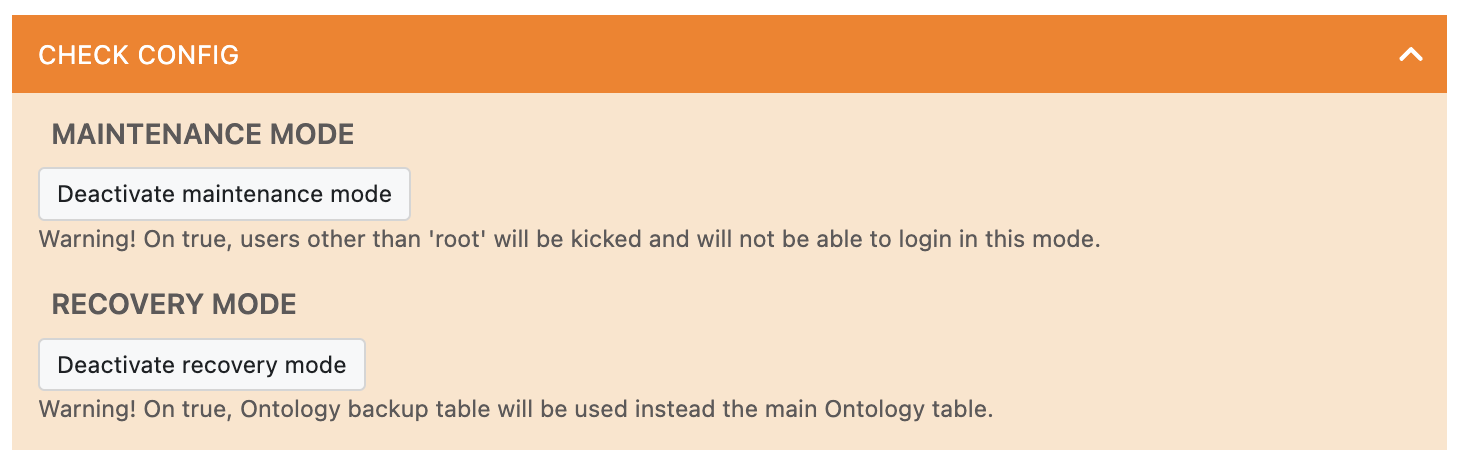
Deactivate recovery mode
Once your ontology is fixed and secure, deactivate the recovery mode using the button in the 'Check configuration' zone of the 'Maintenance' area, and log out and log in again to Dédalo.