Creating new tools
Introduction
Dédalo tools are isolated blocks of code that extend components, sections and areas. A tool consists of a server TS module (server/index.ts, exporting a ToolServerModule), client JS/CSS files, and a register.json file describing it. Tools can add their own user interface for complex interaction and data analysis.
The process has two halves, and they meet in register.json:
- The code — a directory under
tools/with the client, the server module and the icon. - The registration record — authored inside Dédalo, in the Tools development section (
dd1340), and exported from the inspector asregister.json.
This page is the end-to-end tutorial. The companion references are:
- Tools catalog — every tool shipped with Dédalo v7, grouped by purpose, with per-tool reference pages
- register.json reference — every field of the registration file
- Server contract — the
ToolServerModulecontract, API actions, configuration, hooks - JS lifecycle — the client tool lifecycle and helpers
- Security — what the framework enforces and what you must do
1. Name the tool
All tools have a unique name, and the name is load-bearing: it is the directory name, the file names, the JS identifiers, and the value the registry validates against.
- snake_case, lowercase ASCII only — no spaces, accents or non-ASCII characters (they break paths)
- mandatory
tool_prefix, then your institution/TLD acronym, then the feature:tool_numisdata_import=tool_+numisdata(institution) +import(feature) - a name like
my_tool_nameis not portable between installations and will be rejected for sharing - the tool's
server/index.tsmust exporttool.nameequal to the directory name — the loader validates this every time it scans, not only at registration
The descriptive name goes in the label
The Label field is where the tool gets a human name — Tool for importing custom Numismatic files. It is translatable, and it is what users see in menus, modals and windows.
File naming rules
All examples use the fictitious tool tool_numisdata_import:
| File | Rule |
|---|---|
js/tool_numisdata_import.js |
Main client file: the full tool name |
js/render_tool_numisdata_import.js |
Render file: render_ + the tool name. Extra views insert their name — render_list_tool_numisdata_import.js |
js/index.js |
Mandatory module entry — Dédalo imports the tool through it |
css/tool_numisdata_import.css |
The full tool name. LESS/SASS is fine, as long as the built CSS carries that name |
img/icon.svg |
The tool logo: a square SVG (vector only), usually on a 1024×1024 artboard |
server/index.ts |
Exports const tool: ToolServerModule — never served to the browser |
register.json |
The registration record (step 3) |
Directory layout
├── tool_numisdata_import
    ├── register.json
    ├── css
    │   └── tool_numisdata_import.css
    ├── img
    │   └── icon.svg               # square SVG, ~1024×1024 artboard
    ├── js
    │   ├── index.js               # module entry (re-exports the tool)
    │   ├── tool_numisdata_import.js
    │   └── render_tool_numisdata_import.js
    └── server
        └── index.ts               # exports `tool: ToolServerModule` — never served
tools/ is the repo-root, TS-owned tree. The common machinery (registry, loader, dispatch, security, config, the tool_common client base) is NOT a tool — it lives in src/core/tools/.
2. Scaffold the directory
The fastest start is the CLI scaffolder, which copies the reference template (tools/tool_dev_template) and renames everything:
bun run scripts/create_tool.ts \
    --name=tool_numisdata_import \
    --label="Numismatic import" \
    --models=section
Options:
| Option | Description |
|---|---|
--name |
Required. Tool name: ^tool_[a-z0-9_]+$. Becomes the directory name (class/file renames follow automatically) |
--label |
Display label (stored as lg-eng); defaults to --name. Add more languages later |
--models |
Comma-separated affected models, e.g. section,component_input_text. Default all_components |
The scaffolder copies tools/tool_dev_template, renames every tool_dev_template occurrence (directory, file names, JS identifiers), and writes a minimal register.json in the flat authoring format so the package is registrable from the first minute. You can also copy tools/tool_dev_template by hand and rename every occurrence yourself.
That placeholder file is a starting point, not the finished registration: the full definition — translated labels, scope flags, ontology, properties, UI labels, configuration — is authored in the next step and replaces it.
3. Create the record in Tools development (dd1340)
Tools need a register file carrying the configuration, labels and other information that positions the tool inside the Dédalo schema. Dédalo has a section built for exactly that, so you never write the file by hand.
-
Go to:
Development → Tools → Tools development
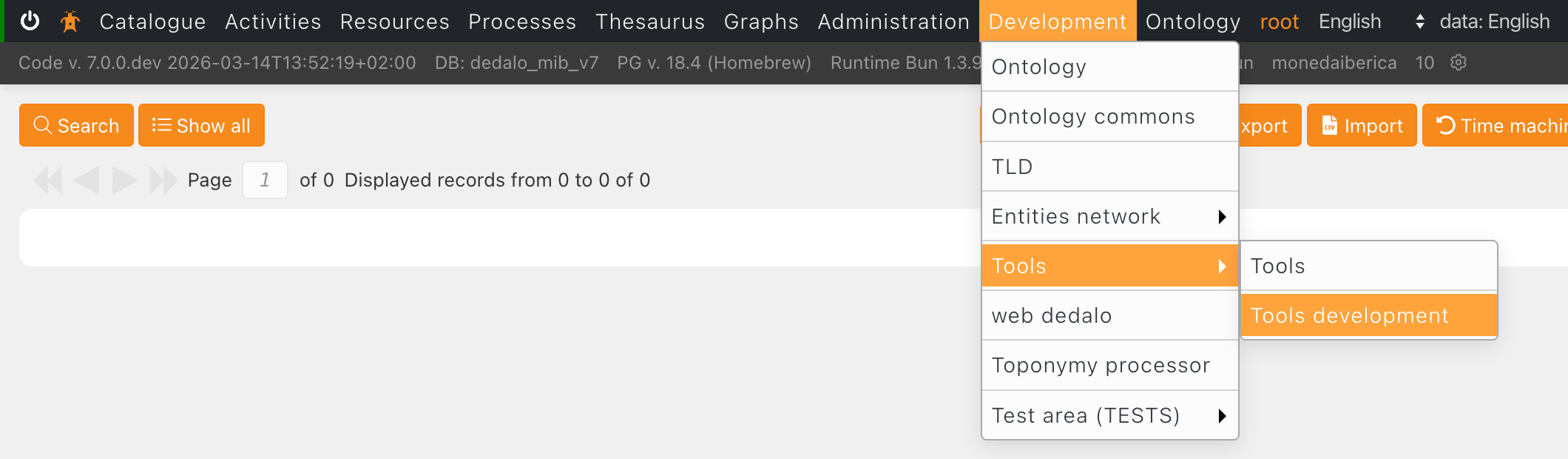
Its two sibling sections are read-only from your point of view here: Registered tools (
dd1324) is what the register process writes, and Tools configuration (dd996) holds the per-install configuration overrides. -
Create a new record and fill the fields.
The form is grouped as Information, Scope, Ontology, Labels and Configuration:
Field Tipo Description Comments Active dd1354Activate or deactivate the tool Tool name dd1326Real name of the tool, e.g. tool_numisdata_importMust be exactly the directory and file name; registration refuses a mismatch Label dd799A short free text naming the tool for users Translatable; used as the title of the tool's modal or window Version dd1327Tool version Semantic version ( 1.0.0); the Register tools panel compares it against the installed oneDédalo version minimum dd1328Minimum compatible Dédalo version Registration refuses the tool on an older engine Description dd612Free text describing the tool Shown to inform the user what the tool is for Developer dd1644Your name Use the (+) button for more than one developer Implementation dd1362Technical description of how to use and configure the tool Requirements, options, anything an installer needs Shown in inspector dd1331Add the tool to the inspector For general-purpose tools Shown in Component dd1332Add the tool to the component For component-specific tools: the button appears when the component is active Translatable requirement dd1333The tool needs a translatable component On a non-translatable component the tool will not activate Active always dd1601Availability does not depend on the active component or section Bypasses the per-profile tools grant Affected models dd1330The models the tool applies to Other models never load the tool. The options are the Target models records ( dd1342)Affected types dd1350Array of ontology tipos of the affected component, area or section Use it to restrict the tool to specific nodes instead of every node of that model Ontology dd1334An ontology extension Some tools need to attach their own nodes; use the ontology format Properties dd1335An extension of the ontology properties Usable independently of the ontology definition — open_as, events,tool_configLabels dd1372Strings with translations for the tool's own interface Read from JS with self.get_tool_label('my_label'). Edit them withtool_dd_labelinstead of typing raw JSONDefault configuration dd1633JSON object with the factory configuration Overridable per install in the Tools configuration section Configuration dd999JSON object with the full configuration definition The complete option set of the tool Two fields in the form are not yours to fill: Id (
dd1351) is the record locator, and Simple tool object (dd1353) is a cached blob the engine maintains.Configuration flagged
client: truereaches the browserProperties of
configmarked"client": trueare served to the client (getToolClientConfig). Never put credentials or secrets there — see Security.
4. Export the register file
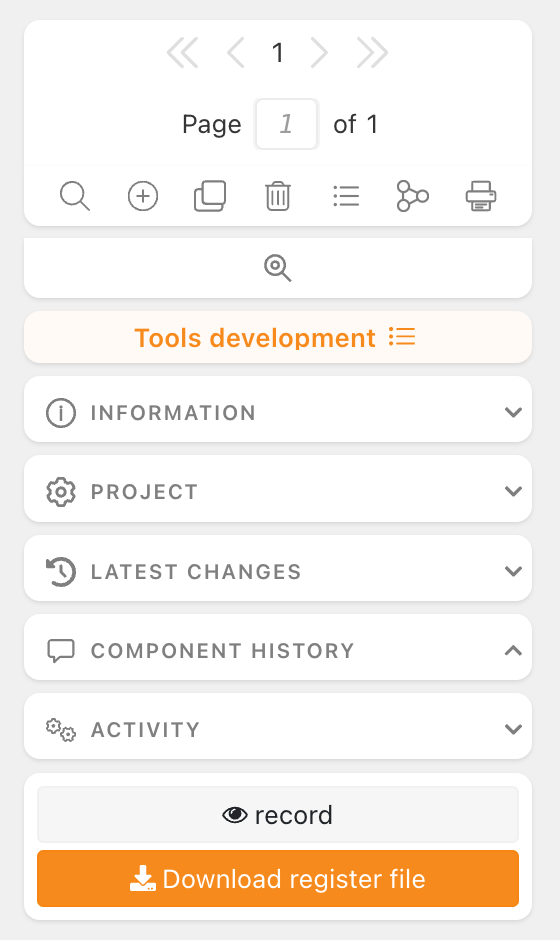
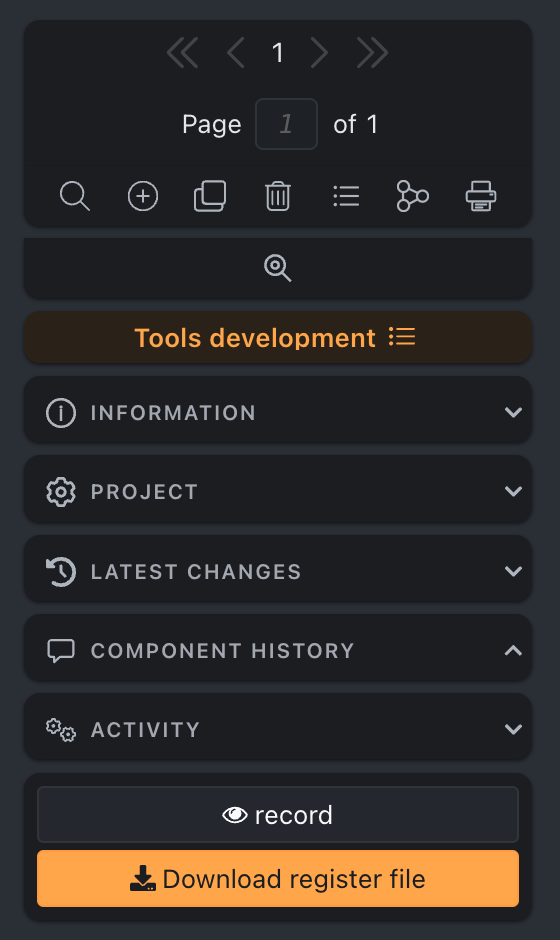
When the record is complete, press Download register file in the inspector (bottom of the Info block, next to View record data). It is offered on dd1340 records only.
The button reads the record back through the API (a read_raw request on that single record) and downloads the whole thing as register.json — every field you filled, keyed by component tipo. If you later need to change or add configuration, labels, and so on, you repeat the process: edit the record, download the file again, replace it.
Move the downloaded file into the root of your tool directory, next to css/, js/ and server/, replacing the placeholder the scaffolder wrote.
Exported files are column-keyed, and that is a supported shape
The export is a matrix-row dump — top-level data / string / relation / misc keyed by component tipo — and every register.json shipped in tools/ is one. importTools() detects that shape and passes it through as-is. Do not hand-edit it: change the dd1340 record and export again, so the record and the file never disagree.
Alternative: hand-write the authoring format
register.json also accepts a flat, hand-authorable authoring format, schema-validated and converted at import. It is what the scaffolder writes, and it is the portable option for a tool distributed across installs, because affected_models are written as plain model names and resolved to their dd1342 locators at registration time:
{
    "$schema": "../../src/core/tools/register.schema.json",
    "name": "tool_numisdata_import",
    "version": "1.0.0",
    "label": { "lg-eng": "Numismatic import" },
    "affected_models": ["section"]
}
One language label is enough — the client falls back across languages. The $schema pointer gives you autocomplete and validation in any JSON-schema-aware editor. See the register.json reference for every field of both shapes.
5. Implement the server module
server/index.ts exports const tool: ToolServerModule, declaring its callable actions in apiActions — preferably with a declarative permission per action so the framework enforces the gate before your handler runs:
import type { ToolActionContext, ToolResponse, ToolServerModule } from '../../../src/core/tools/module.ts';

async function importFile(context: ToolActionContext): Promise<ToolResponse> {
    // context.options is already permission-checked for (section_tipo, level>=2)
    // your logic here...
    return { result: true, msg: 'OK', errors: [] };
}

export const tool: ToolServerModule = {
    name: 'tool_numisdata_import',
    apiActions: {
        import_file: { permission: 'section', minLevel: 2, handler: importFile },
    },
};
Full contract (permission kinds, background execution, configuration, lifecycle hooks): Server contract. Security model: Security.
6. Implement the client
The template wires the standard lifecycle for you with wire_tool and calls the server through this.tool_request:
import {tool_common, wire_tool} from '../../../core/tools_common/js/tool_common.js'
import {render_tool_numisdata_import} from './render_tool_numisdata_import.js'

export const tool_numisdata_import = function () { /* instance vars */ }

wire_tool(tool_numisdata_import, render_tool_numisdata_import)

tool_numisdata_import.prototype.do_import = async function() {
    return this.tool_request({
        action  : 'import_file',
        options : { section_tipo: this.caller.section_tipo, file: '...' }
    })
}
The relative import ../../../core/tools_common/js/tool_common.js resolves through the served URL tree, not the repo tree: tool_common.js itself lives at client/dedalo/core/tools_common/js/tool_common.js and is served at /dedalo/core/tools_common/js/tool_common.js. Lifecycle, ddo_map, modal/window modes, labels: JS lifecycle.
Colour and styling
Each tool has one identity colour, declared once in its own stylesheet (css/tool_numisdata_import.less):
:root {
    --tool_numisdata_import: #2a7d6f;
}
@tool_color : var(--tool_numisdata_import);
Everything else is derived from it. bun run css:tool-colors writes, per tool and per theme, the header edge (--tool_edge), a button fill (--tool_fill, the colour made lighter or darker only as much as needed so its label reaches 4.5:1 contrast), its hover (--tool_fill_hover) and the label colour (--tool_on_fill, white or near-black). The output is the generated file client/dedalo/core/tools_common/css/tool_colors.less — never edit it; change the colour and run the command again, then bun run css:build. The scaffolder runs the generator once for a new tool.
Three rules keep every tool readable and consistent:
-
Do not style the header surface. The header — its light surface tinted with the tool colour, the coloured top edge, the shadow and the text colours — is shared by every tool, in a modal and in its own window. A rule setting
backgroundorbox-shadowon.tool_headerin a tool stylesheet is refused by the test suite. Style the header's children (a wider select, an extra control) freely.The header's height follows its content, and so does the dialog's title bar that holds it. The description sits beside the tool name when it gets at least about 18rem of width, and moves to its own line below the name when it does not. The dialog body always starts below the header, also after the user resizes the dialog, and scrolls under it. So do not give
.tool_headeror.tool_name_containera fixed or maximum height: the text would be cut off. - Never put text on the raw colour. Identity colours are mid-tones chosen to be recognisable: about half of them are unreadable under white text, the other half under black. A button in the tool colour uses the shared mixin, which applies the fill, the label colour and the icon colour together:@import (once, reference) '../../../client/dedalo/core/tools_common/css/tool_mixins'; .wrapper_tool.tool_numisdata_import button.button_import { .tool_action_button(); }A plain
button.primaryinside the tool gets the same treatment automatically. Abackground-color: @tool_coloron abuttonis refused by the test suite. - Keep the raw colour for decoration — small accents, a hover tint on an icon, a selection outline — never under text.
7. Register the tool
The final step that activates the tool is registering it. Go to:
System administration → Maintenance
Locate the Register tools panel and look for your tool in the list — one row per tool, with columns Active, Name, Developer, Installed, Version and Info. If your tool is not there, check that the directory sits in tools/, that register.json is inside it, and that every required file is named correctly.
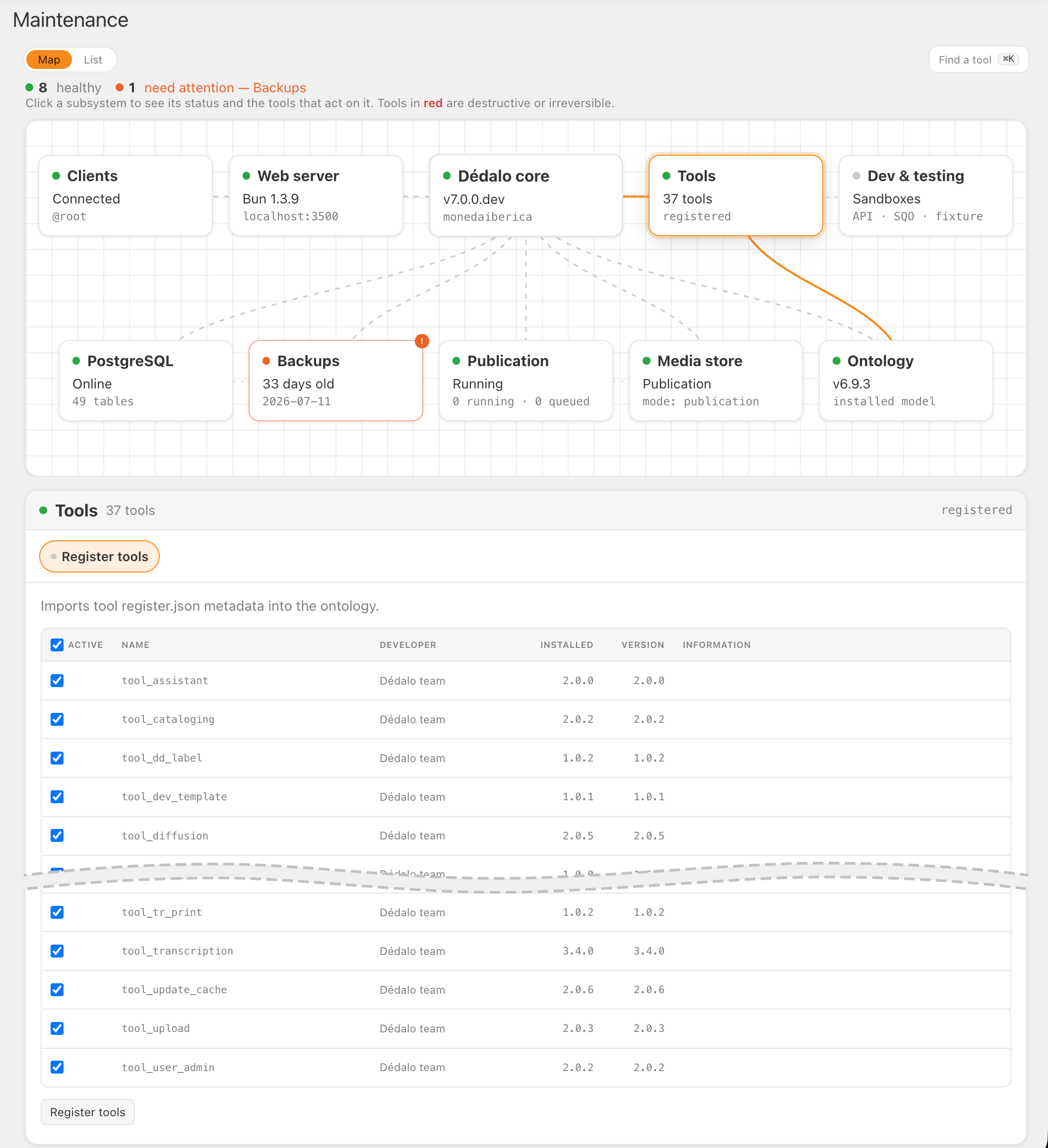
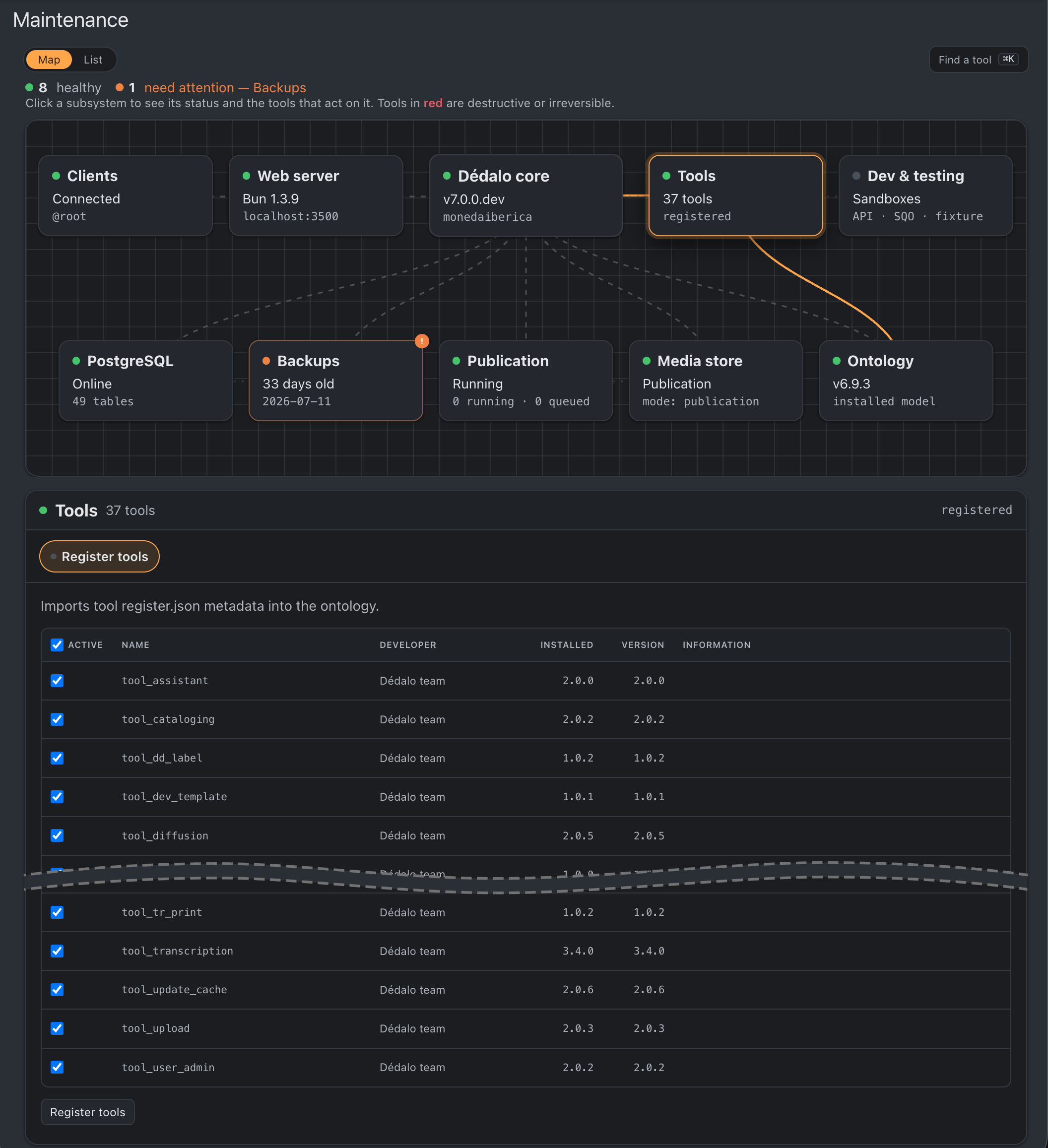
Press Register tools. The importer scans the tool roots, validates each package and reconciles it with the registered-tools section (dd1324). The leading Active checkbox is not a row selector: it is the tool's active state, and what you leave checked at submit time outranks the active value the file declares.
The panel above is showing exactly the drift it exists to surface: tool_ontology_parser ships 1.1.0 on disk while the registry still serves 1.0.1. Pressing the button is what closes that gap.
Registration validates before it reports: register.json structure and format, the tool name matching its directory, a semantic version, at least one label, a satisfied minimum-Dédalo version, and — via the loader — that server/index.ts, if present, satisfies the ToolServerModule contract. Failures appear in the report with explicit messages; nothing registers silently broken. A tool with no server module registers with a warning: tool_request will refuse any action named against it.
The registry is what runs, not the file
Tool metadata is served from the registry record, never by re-reading register.json. Editing the record, the file, or both changes nothing for users until you press Register tools again. The panel makes the drift visible: it shows Installed (registry) against Version (the file on disk) and flags every disagreement — see area_maintenance.
8. Authorize and use
Grant the tool to user profiles: System administration → Profiles → Tools. Superusers see all registered tools. Tools flagged Active always bypass profile authorization.
The tool button now appears on matching elements (per Affected models / Affected types and the Shown in Component / Shown in inspector flags).
9. Test
Follow the existing test pattern for a real tool (e.g. test/parity/tool_export_differential.test.ts or test/unit/tools_dispatch.test.ts): drive the same tool_request through the dispatcher and assert on the response — parity gates replay the frozen fixture store (test/parity/fixtures/oracle_harvest/) rather than a live external server.
On a phone
Every tool must work on a 360px phone. Add a probe for your tool to test/helpers/tool_phone_ratchet.ts and run bun run test:tools:phone --tool <your_tool> --shots <dir>; a new tool directory missing from that list fails tool_phone_tripwire. The contract, the shared rules you get for free and the touch gestures are in Tools on a phone.
Out-of-repo tools
Third-party tools can live outside the Dédalo checkout (surviving git pull, independently versioned). Configure an additional root via config.tools.additionalRoots (env DEDALO_ADDITIONAL_TOOLS, JSON):
DEDALO_ADDITIONAL_TOOLS=[{"path":"/srv/custom_tools","url":"/custom_tools"}]
path: absolute directory containingtool_*foldersurl: same-origin web URL serving that directory — the browser loads tool JS/CSS from it; cross-origin URLs are refused at config load
The in-repo tools/ root always wins on name collisions (reported via getToolLoadCollisions(), never silently overridden). Tools in additional roots still require registration and profile authorization, exactly like in-repo tools.
To help you start, Dédalo ships a template/sample tool — tool_dev_template — showing the basic functionality.
Done! Now it is your time to create an amazing tool.